Extensions
  • Home
  • Add-ons
  • Themes
  • Approval Queue
  • About
  • Upload Extension
  • Sign in
  • BLENDER.ORG

    • Download

      Get the latest Blender, older versions, or experimental builds.

    • What's New

      Stay up-to-date with the new features in the latest Blender releases.

    DEVELOPMENT

    • Roadmap

      See which projects are currently being worked on and what's next.

    • Documentation

      Guidelines, release notes and development docs.

    LEARNING & RESOURCES

    • Blender Studio

      Access production assets and knowledge from the open movies.

    • Manual

      Documentation on the usage and features in Blender.

    • Benchmark

      A platform to collect and share results of the Blender Benchmark.

    • Blender Conference

      The yearly event that brings the community together.

    DONATE

    • Development Fund

      Support core development with a monthly contribution.

    • One-time Donations

      Perform a single donation with more payment options available.

All Add-ons

Add-on Snap Bisect
Snap Bisect
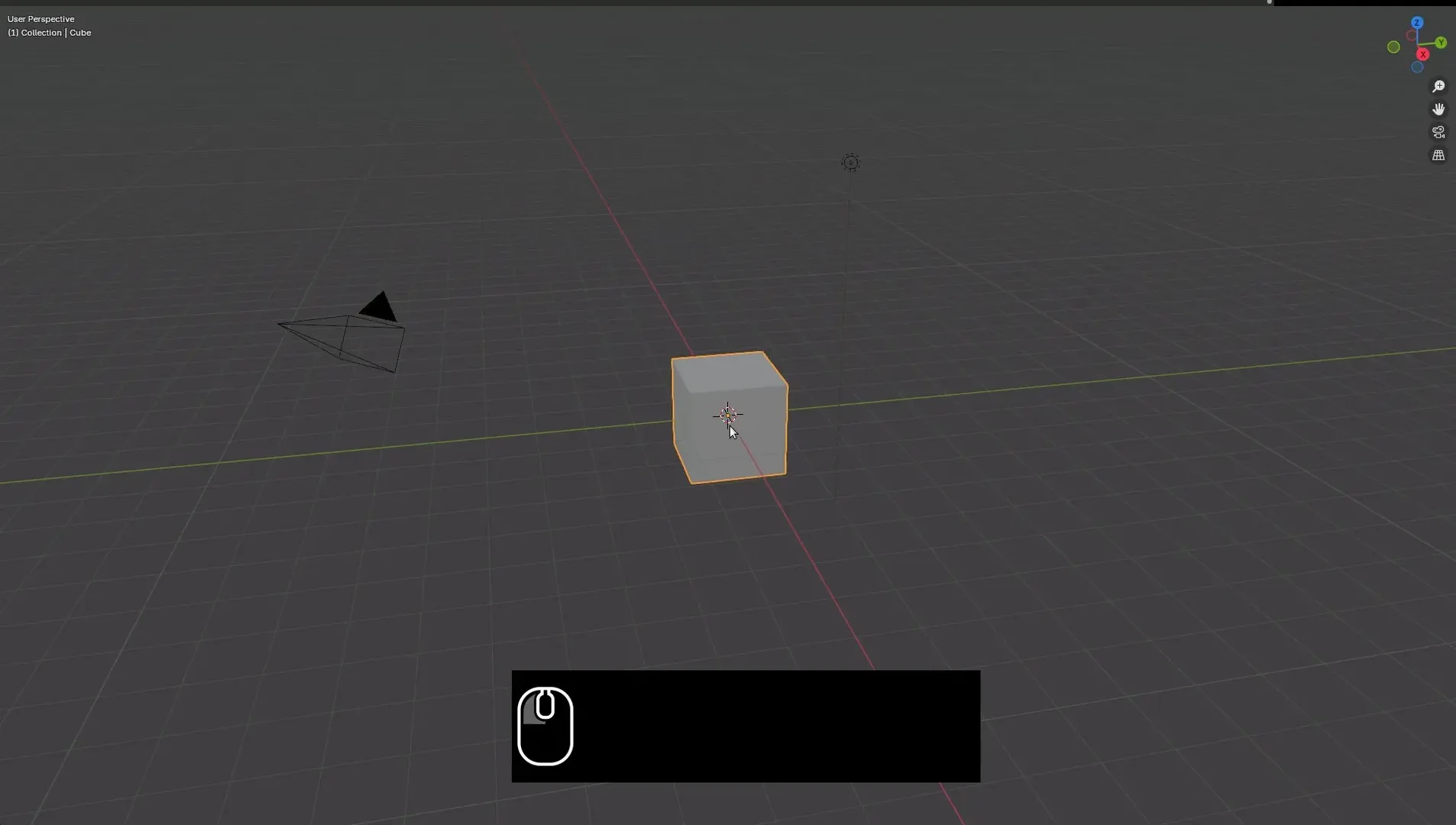
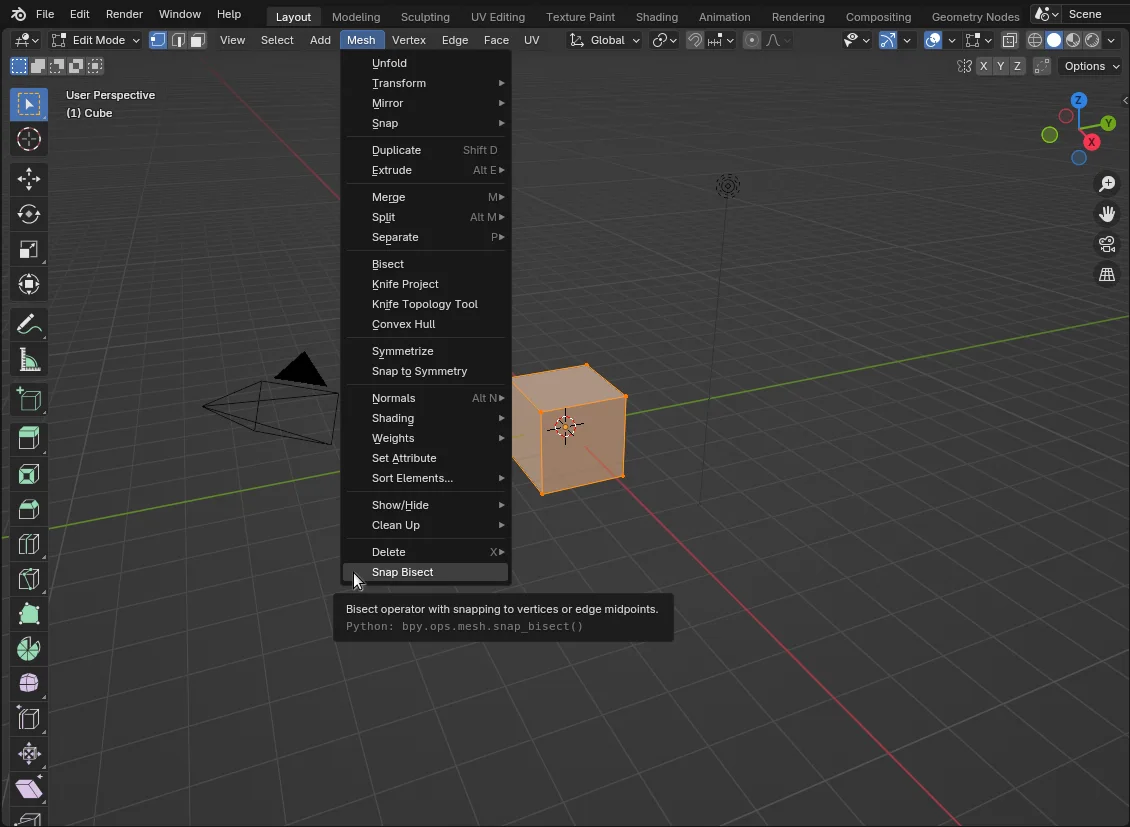
Bisect operator with snapping to vertices or edge midpoints.
Add-on by AdamDominec
About What's New Reviews Version History
Showcase of all features Location of Snap Bisect in the Edit Mesh menu

This add-on is especially suited for precise modeling. It allows you to apply the Bisect tool precisely and specify the cutting plane by a couple of anchor points.

  1. Start by selecting the geometry (in Edit Mode) that should be bisected.
  2. Press F3, find the Snap Bisect operator and invoke it.
  3. Click three vertices or edge midpoints (marked in pink).

All the selected edges and faces will be sliced by a cutting plane that exactly passes through the picked points. Exactly as with the Bisect tool itself, the slice is selected.

Instead of the Search menu, you can find the operator in 3D View -> Mesh -> Snap Bisect.

Instead of selecting three points, it is possible to:

  • select two points and press Enter for a view-aligned cut
  • select two points and press X, Y or Z for an axis-aligned cut
  • select one point and press X, Y or Z for a plane-aligned cut

If some parts of the model are hidden, you can still enable them as anchor points by pressing the H key when the Snap Bisect operator is active.

The operator also works well in orthogonal view, where axis-aligned cuts are especially handy.

In specific scenarios, it may be helpful to modify the parameters of the Bisect operator. In the bottom-left panel that opens after the tool has finished, you can input an Offset and choose the Fill, Clear Inner and Clear outer options.


What's New

1.0.6 September 3rd, 2025
  • Fixed freeze on large objects

See all versions


Permissions

This extension does not require special permissions.

Developer
AdamDominec
Rating
(5)
Version
1.0.6
Updated
9 mo
Published
July 21st, 2024
Downloads
5265
Size
3.8 KB
Compatibility
Blender 4.2 LTS and newer
Report Issues
github.com/addam/blender-bits/issues
License
GNU General Public License v3.0 or later
Modeling Mesh
...or download and Install from Disk
  • 3.8 KB

Reviews

See all
  • vojtastic-1
  • v1.0.6
  • 2 mo

Excellent tool, but the vertex selection only works on the active object. I would really appreciate the ability to select vertices from all selected objects OR from all objects in the viewport. Or am I missing something? The cut is then applied to all selected faces (not just the active object), so there's a bit of confusion here...

I would also appreciate it if the selectable points were much larger so I could see them better.

Also, I would appreciate the option to cut only in the plane between the selected nodes (rather than extending the cut across the entire plane).

  • M-25
  • v1.0.6
  • 7 mo

Great, but should be a native feature with knife tool and snapping enabled. To bad it needs an add-on (this one).

  • Kanjuro
  • v1.0.6
  • 9 mo

Perfect tool for something that should have been a native feature.

5.0

5 reviews
5
4
3
2
1
Rate this Add-on Report an issue
  • About
  • Privacy Policy
  • Terms of Service
About
  • Blender Foundation
  • Blender Institute
  • Blender Studio
  • License
  • Logo & Trademark
  • Credits
  • Privacy Policy
  • Code of Conduct
Organization
  • People
  • Jobs
Blender Network
Download
  • Latest Blender
  • Blender LTS
  • Previous Versions
  • Experimental Builds
  • Source Code
  • Requirements
  • Benchmark
  • Flamenco
Extensions
  • Add-ons
  • Themes
Developers
  • Get Started
  • Roadmap
  • Projects
  • Docs
  • Blog
  • Forum
  • YouTube
  • Python API
Blender Studio
  • Films
  • Training
  • Tools & Pipeline
Support
  • Manual
  • Community
  • FAQ
Get Involved
  • Documentation
  • Education
News
  • Press Releases
  • User Stories
Blender Conference
Follow Blender
Support Blender
  • Donate
  • One-time Donation
Artistic freedom starts with Blender The Free and Open Source 3D Creation Suite