 Place Helper
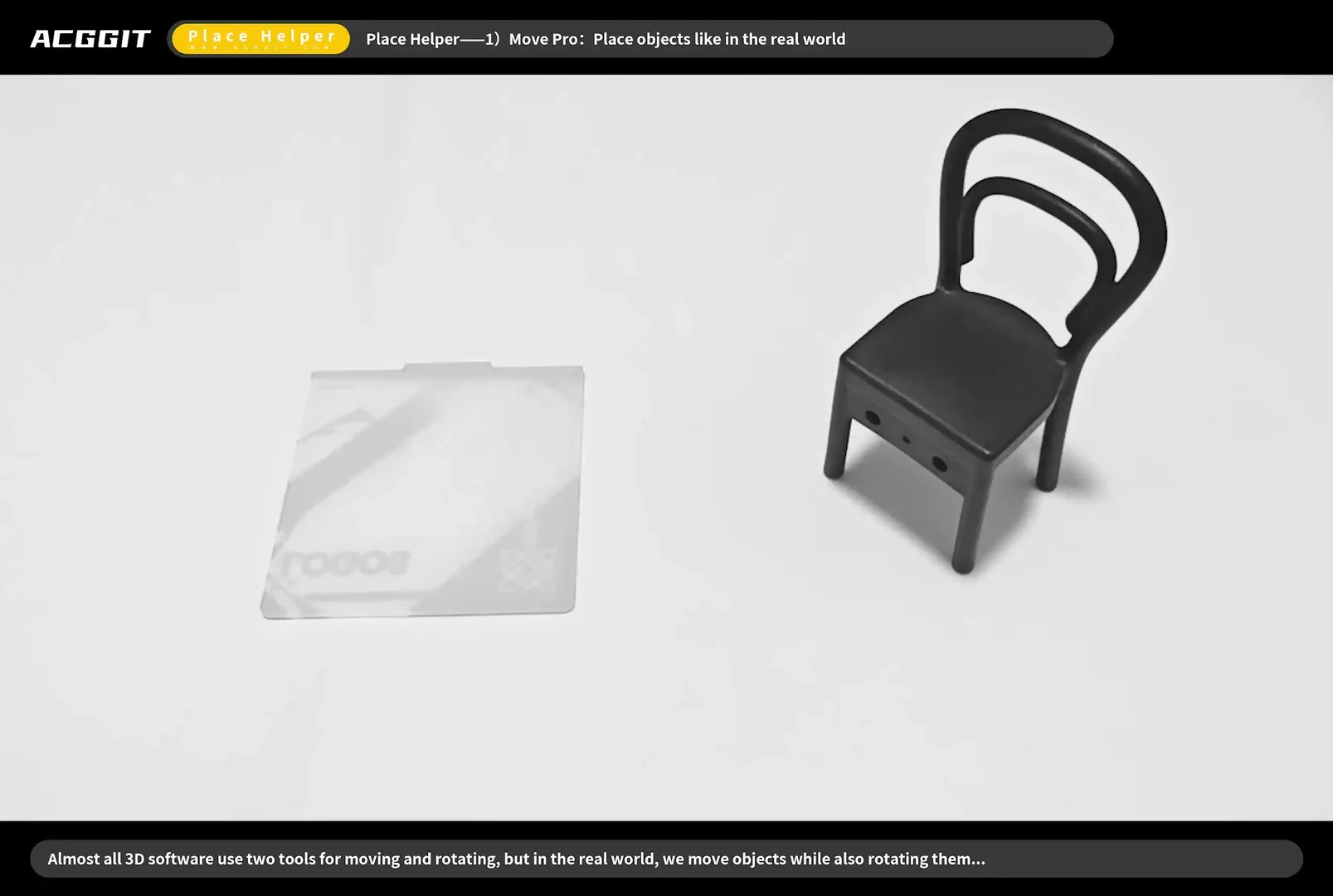
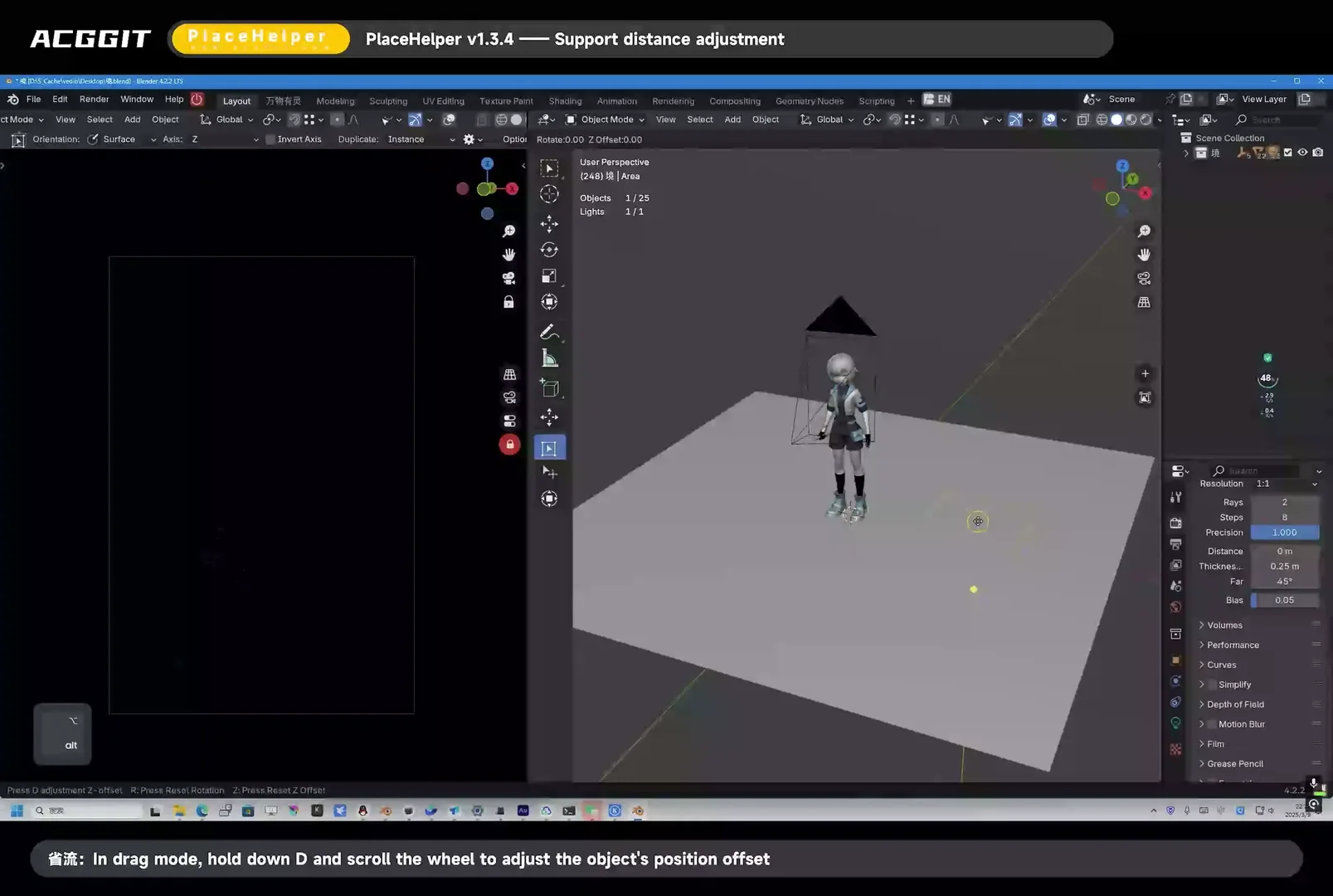
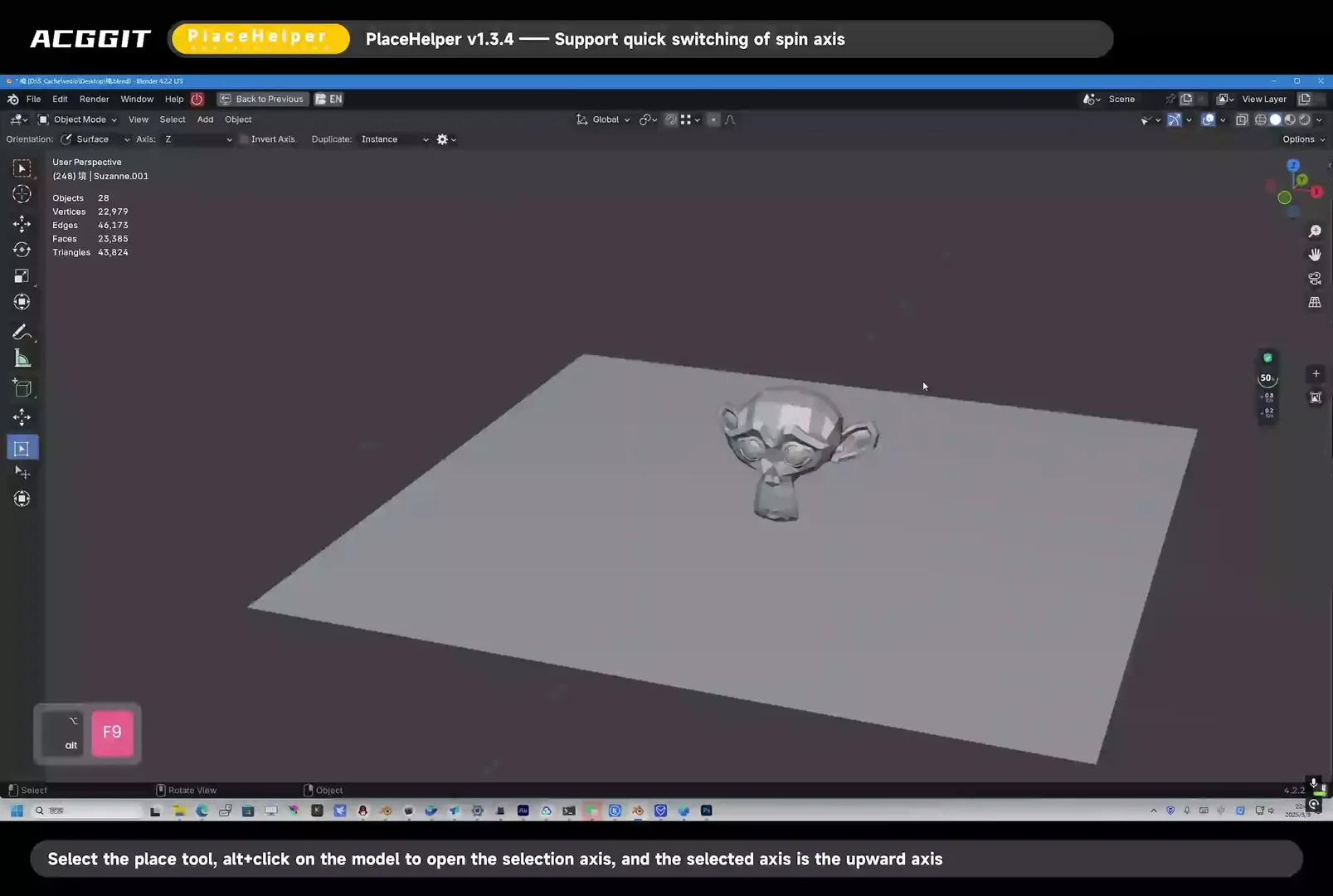
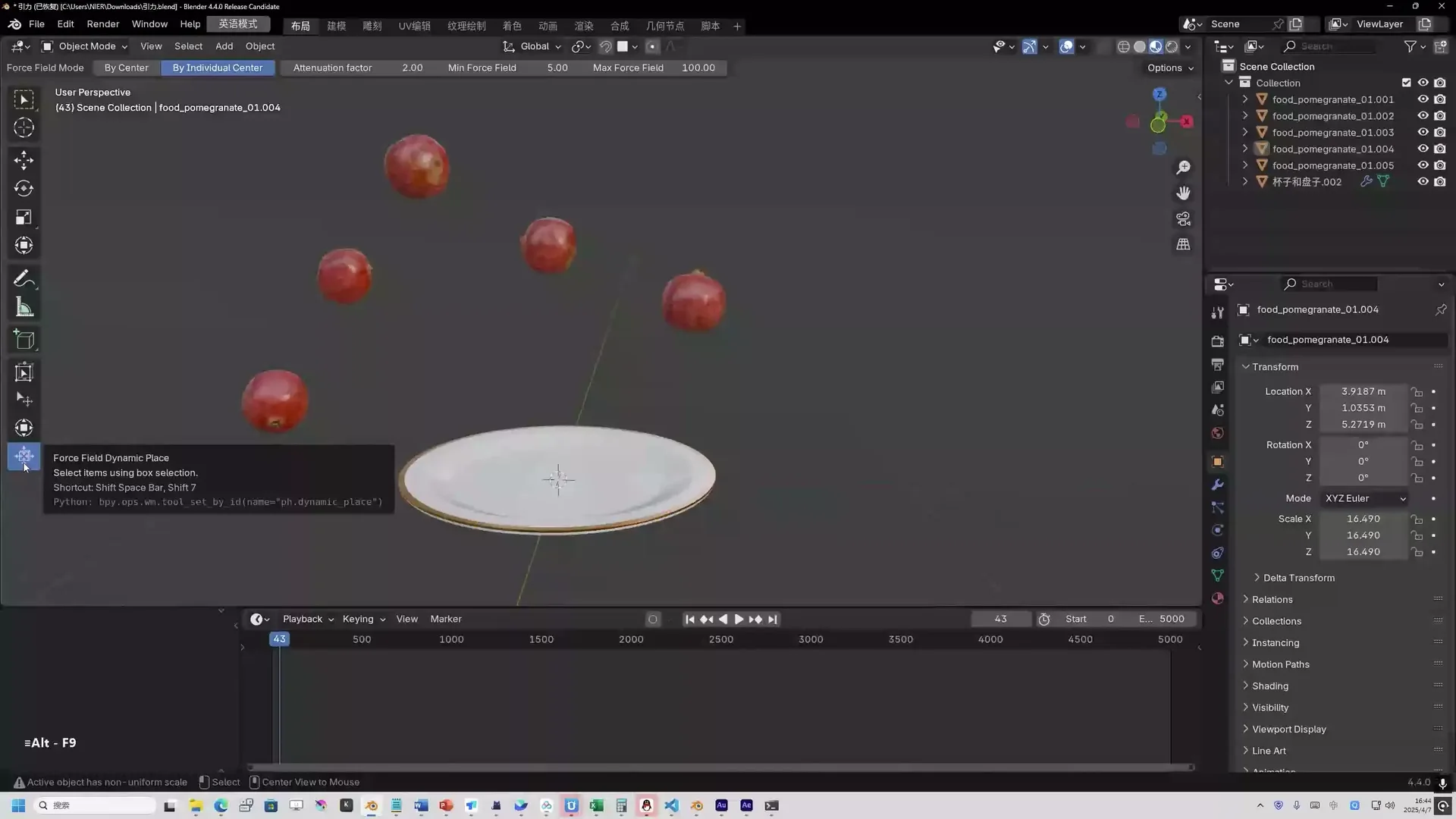

"A lightweight, intuitive toolkit — built for artists who want one hand placing objects and the other hand on a coffee cup."
Place Helper is a Blender extension that adds four specialized workspace tools — Place, Transform Pro, NEW Scatter, and Dynamic Place — designed to speed up everyday object layout, environment building, and scene dressing workflows.
🧲 Place Tool
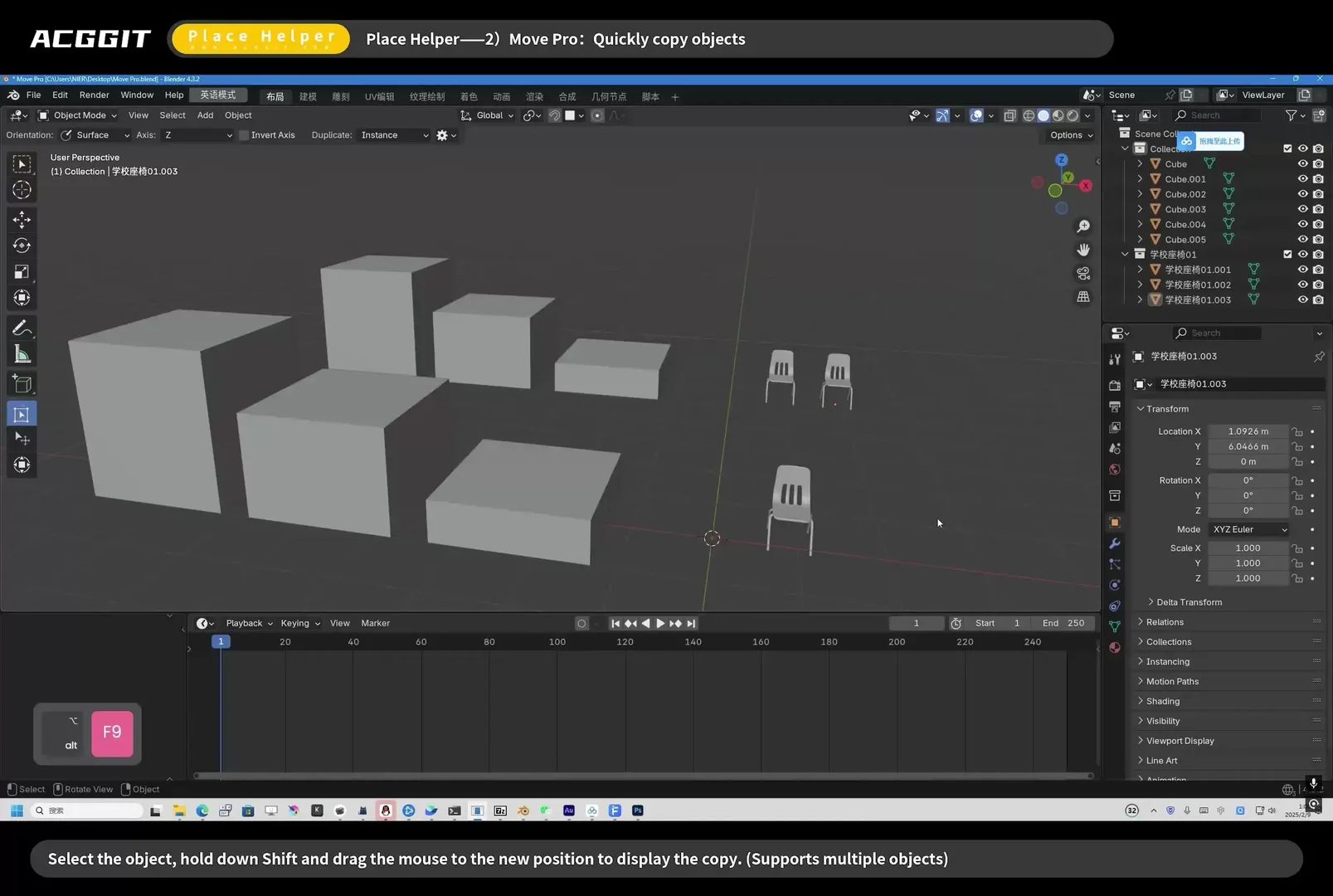
The Place Tool lets you pick up selected objects and drop them onto any surface as if placing assets from a library — with snapping, orientation control, and optional collision feedback.
Core workflow
- Click — select an object
- Drag — move the selection along the surface; the object aligns to the hit normal (when Orientation is set to Surface)
- Shift + Drag — duplicate (Instance or full Object copy) while placing
- Alt + Click — enter axis-setting mode; click a gizmo arrow to define which local axis points "up" for placement
NEWAlt + Drag — box-select objects (even when something is already selected)- Drag + Mouse Wheel — spin the object around the placement axis while dragging
- Drag + Ctrl + Alt + Wheel — snap spin in 90° steps
Toolbar options
| Option | Description |
|---|---|
| Orientation | Default keeps the object's rotation; Surface aligns it to the face normal |
| Axis / Invert Axis | Which axis is treated as "up" when aligning to a surface (scene-wide) |
NEW Use Object Up Axis |
When enabled, each object remembers its own up axis and invert setting — set per object via Alt + click |
| Duplicate | Choose Instance (linked) or Object (full copy) for Shift + drag |
NEW Limit to Ground |
Prevents placed objects from moving below the world Z = 0 plane |
Gizmos
- Rotate and scale handles appear on the active mesh object
- Axis-setting arrows appear temporarily when configuring the up direction
Settings panel (gear icon)
- Bounding-box calculation mode (accurate vs. fast)
- Scene instance handling for geometry-nodes instances
- Collision stop when intersecting other objects
🔧 Transform Pro
Transform Pro is a viewport-centric alternative to Blender's built-in Move tool. It prioritates NEW direct left-drag manipulation over always-visible gizmos, while still supporting duplication, edit-mode extrusion, and quick mode switching.
Object Mode
| Action | Result |
|---|---|
NEW Left-Drag on object |
Move selection (view-plane translation) |
| Left-Drag on empty space | Box select |
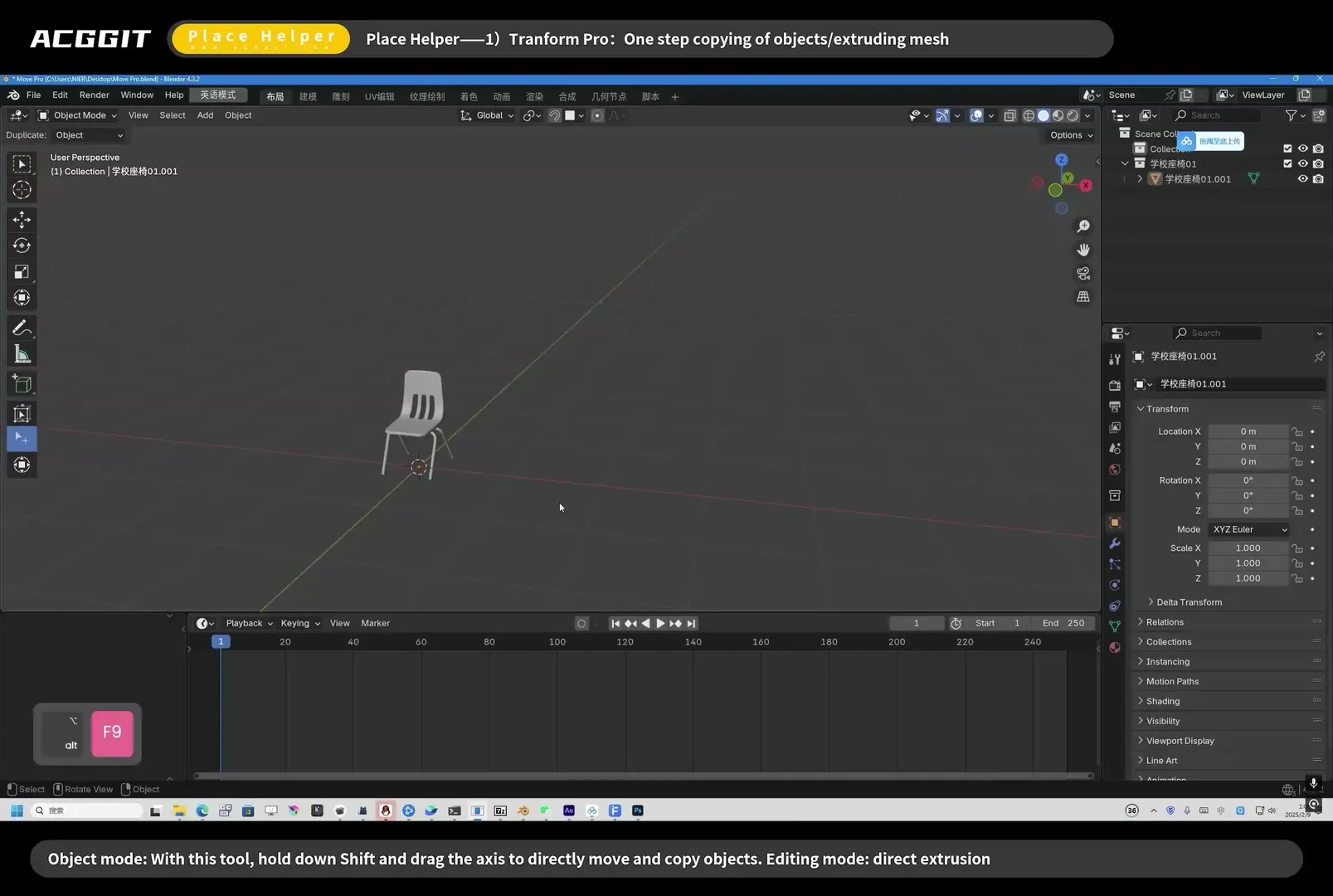
| Shift + Drag on object | Duplicate then move (Instance / Object per toolbar) |
NEW Alt + Drag on object |
Duplicate then move (same as Shift) |
NEW Double-Click object |
Enter Edit Mode (auto-switches to Transform Pro Edit) |
NEW Esc |
Exit to Box Select tool |
Toolbar options
| Option | Description |
|---|---|
| Duplicate | Instance or Object copy mode for Shift / Alt + drag |
| Gizmo Alpha Vary | Fade gizmo opacity when axes overlap on screen |
NEW Show Gizmo |
When off (default), move by left-dragging objects; when on, show axis / plane move gizmos |
Edit Mode
| Action | Result |
|---|---|
| Drag gizmo | Move / rotate / scale (when gizmos are visible) |
| Shift + Drag gizmo | Extrude mesh along the gizmo axis |
NEW Double-Click empty space |
Return to Object Mode |
| Clear Mesh button | Boolean-style mesh cleanup on selected faces |
🌿 Scatter Tool NEW
Entire tool is new in 2.0.
The Scatter Tool paints object instances across surfaces with a brush, similar to a sculpting or painting workflow. It replaces fixed "count" placement with density (instances per square unit of brush area), so large minimum-distance values no longer starve the result.
Core workflow
| Action | Result |
|---|---|
| Drag on surface | Paint scattered instances inside the brush ring |
| Ctrl + Drag | Erase instances within the brush |
| Drag on empty space | Box-select source objects to scatter |
| Alt + Wheel (hover) / Wheel (while painting) / [ / ] | Adjust brush radius |
| Esc | Finish brush session and switch to Box Select |
Supported source types Meshes, curves, empties, lights, and linked instances.
Brush parameters (toolbar)
| Feature | What you get |
|---|---|
NEW Radius |
Brush size; supports pressure (tablet) and random min/max via popover |
| Density | Target instances per unit area; supports pressure and random range |
| Min Distance | Minimum spacing between instances (0 = off); optional random spacing range |
| Scale | Base scale; supports pressure and random min/max |
| Stacking | Allow scattering on top of already scattered objects |
| Sources (icon) | Per-object scatter weight / probability; randomize weights button |
| Apply (✓) | Bake scattered objects into the scene (excluded from Clear) |
| Clear (🗑) | Remove all non-applied scattered instances |
Settings panel (gear icon)
- Transform: random height, align to normal, random rotation / tilt
- Filter: limit to surface, slope limit, world-Z height range
- Density mask: image texture via UV to control local density
- Duplicate mode: Instance or Object
Advanced behavior
- Limit to Surface — samples outside the actual mesh are skipped, so an oversized brush won't scatter beyond the plane edge
- Avoid Overlap — keeps instances apart based on bounding-box size
- Live pressure readout shown at the brush when pressure modes are active
⚡ Dynamic Place
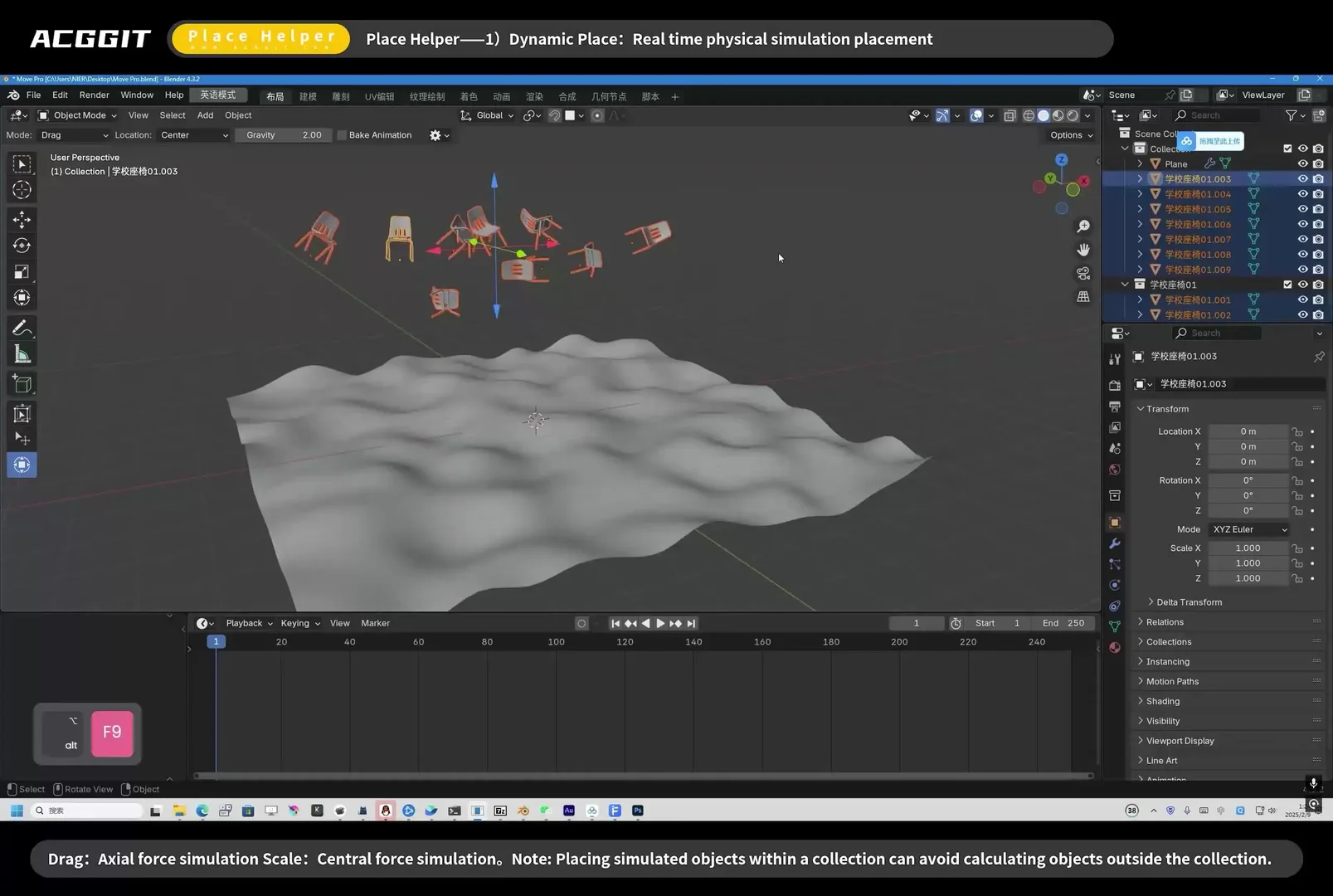
Two physics-inspired tools for quick "drop and settle" or force-field previews without setting up a full rigid-body scene.
Gravity Dynamic Place
- Drag the gizmo to release objects with gravity
- Configure gravity strength, collision shapes (convex hull, sphere, box, mesh…), margins, and optional animation baking
- Modes: Drag (gravity fall) and location pivot (Center / Cursor)
Force Field Dynamic Place
- Drag mode — translate with simulated force
- Scale mode — push/pull via force-field scaling
- Adjustable strength, collision settings, and passive/active shape types
Both tools use the shared Dynamic Place settings panel for collision and performance options.
💡 General Features
NEW Tool Help Overlay
- Shortcuts and gestures shown in the lower-left corner while a Place Helper tool is active
- Toggle via the ? button in each tool's header
- English and Chinese (简体中文)
- Offset X / Y configurable in Add-on Preferences (default 60, 60)
NEW Keyboard & Navigation
- Esc on any Place Helper tool → switch to built-in Box Select
- Middle-mouse and numpad view navigation pass through normally in modal tools
Stability & Quality (2.0.x)
- Fixed undo crashes, stale references after scene reload, box-select / move conflicts, and surface overflow when scattering
- Operator naming and extension metadata compliant with Blender extension guidelines
- Cross-platform packaging (Windows / macOS / Linux)
谢谢大家
Thank you everyone
ありがとうございます、みなさん
감사합니다, 여러분
Danke, Leute
Merci, tout le monde
Gracias, a todos
شكرا لكم جزيلا
Obrigado a todos
What's New
2.0.0 June 29th, 2026
Welcome to version 2.0.0
Place Tool
- Drag to place objects on surfaces with normal alignment and collision detection
- Shift + drag to duplicate while placing
- Alt + click to set the placement axis via gizmo
- Use Object Up Axis — per-object up axis (same behavior as BAS Place); scene-wide axis when disabled
- Alt + drag for box selection; first selected object is promoted to active after box select
- Limit to Ground — prevents objects from going below Z = 0 while moving
- Rotate / scale gizmos; drag + mouse wheel to spin; Ctrl + Alt + wheel for 90° steps
Transform Pro
- Left-drag to move objects directly in the viewport
- Shift / Alt + drag to duplicate while moving (Instance / Object via toolbar)
- Double-click object to enter Edit Mode; double-click empty space to exit (auto-switches to Transform Pro Edit)
- Optional Show Gizmo toggle (off by default)
- Shift + drag in Edit Mode to extrude mesh geometry
Scatter Tool (New)
- Brush-based scattering with density (instances per unit area)
- Radius, density, and scale support pressure sensitivity and random ranges (via popover menus)
- Random spacing, random height, and stacking mode
- Source probability weights with randomize; Apply and Clear scatter
- Limit to Surface — skip samples outside the target surface
- Slope / height filters and image-based density mask
- Alt + wheel or [ or ] to adjust brush radius; Ctrl + drag to erase
- Alt + drag on empty space to box-select scatter sources
- Custom UI icons:
STYLUS_PRESSUREfor pressure, dice icon for random
Dynamic Place
- Gravity Dynamic Place — drag objects with gravity simulation
- Force Field Dynamic Place — drag or scale to apply force field effects
General UX
- Tool Help overlay in the lower-left corner (English / Chinese), toggle in toolbar
- Help offset defaults: 60, 60 (configurable in preferences)
- Esc on any tool exits to the built-in Box Select tool
- Streamlined scatter toolbar — height and duplicate moved into the settings popover
Other
- Improved overall code quality and maintainability across all tools
- Fixed crashes on undo in the scatter tool (stale RNA / collection references)
- Fixed tools becoming inactive after opening a new scene or reloading a file
- Fixed placement tool losing the active object after box selection
- Fixed box select conflicting with object move in Place and Transform Pro
- Fixed double icons on scatter popover buttons
- Fixed circular import error on addon registration (
resolve_place_axis) - Fixed scatter instances placed outside the target surface when brush radius exceeds the plane
- Fixed SyntaxWarning and keymap not found warnings on startup
I understand that developing and maintaining plugins is not easy, and I respect that, but the functionality and positioning really need to be reconsidered. I tried this plugin for the third time purely out of curiosity about the rankings, but the result was still "unacceptable." From an interior designer's perspective, the plugin's purpose wasn't demonstrated. While dragging allows for free movement, it fails to properly capture the ground and appears to float. The gravity and shrink functions are limited to a small number of low-precision items; otherwise, it becomes very laggy and prone to crashing.
不错哦