![Add-on [BAM] Decalit](/media/images/d3/d3dc6fb784f388f405ba57fc8d286d7991e105778681293f647e81b8d9a103d3.png) [BAM] Decalit
[BAM] Decalit


[BAM] Decalit
BAM Decal IT is a GeoNode based decal system and is not intended to replicate the traditional “Import Images as Planes + Shrinkwrap” workflow.
Instead, it provides a custom UI/UX, non-destructive Geometry Nodes workflow, advanced surface snapping, and greater flexibility for decal placement, projection, and management than a standard Shrinkwrap-based setup.
BAM Decalit helps you project mesh decals onto curved surfaces, adjust them directly in the viewport, and keep reusable decal libraries with rendered previews. Use it for hard-surface panels, trims, symbols, labels, screws, vents, stylized marks, and any detail that should sit cleanly on top of another mesh.
Highlights
- Project mesh decals by using convenient UI/UX.
- Place, move, scale, rotate, flip, and align decals in the viewport.
- Control width, height, projection depth, offset, subdivision, trim, and triangulation.
- Switch between Target Topology, Simple, and Volume projection modes.
- Save decal collections and browse them with preview thumbnails.
- Make changes to existing BAM Decals with Decal IT EditMode.
- Cut or restore decal regions with Decal Carve.
- Use the usual hotkeys for Scale "S" and Rotate mode "R"
Interactive Placement
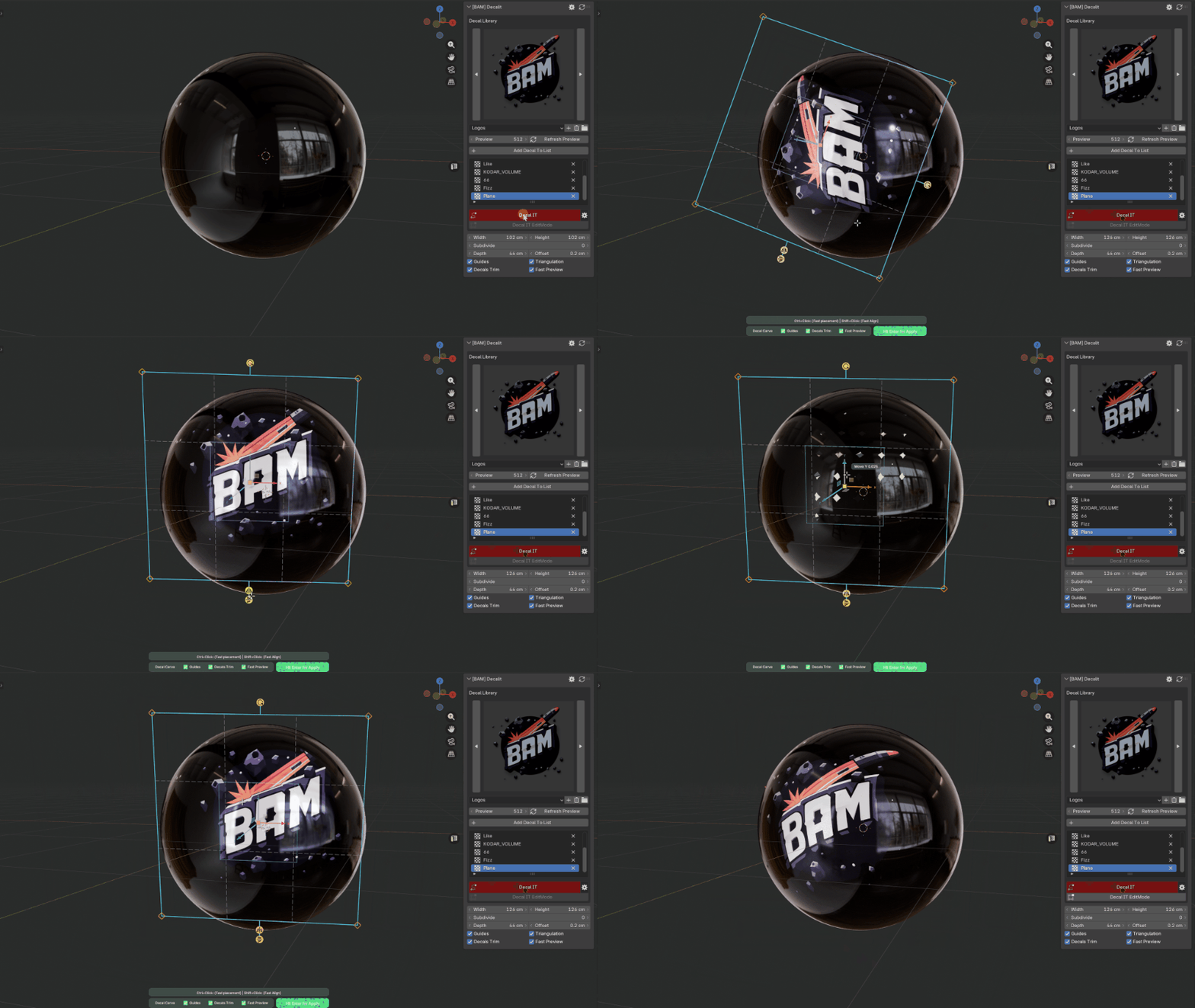
Fast Resize. Use the usual "S" hotkey for fast Scale. "R" key for rotation mode.
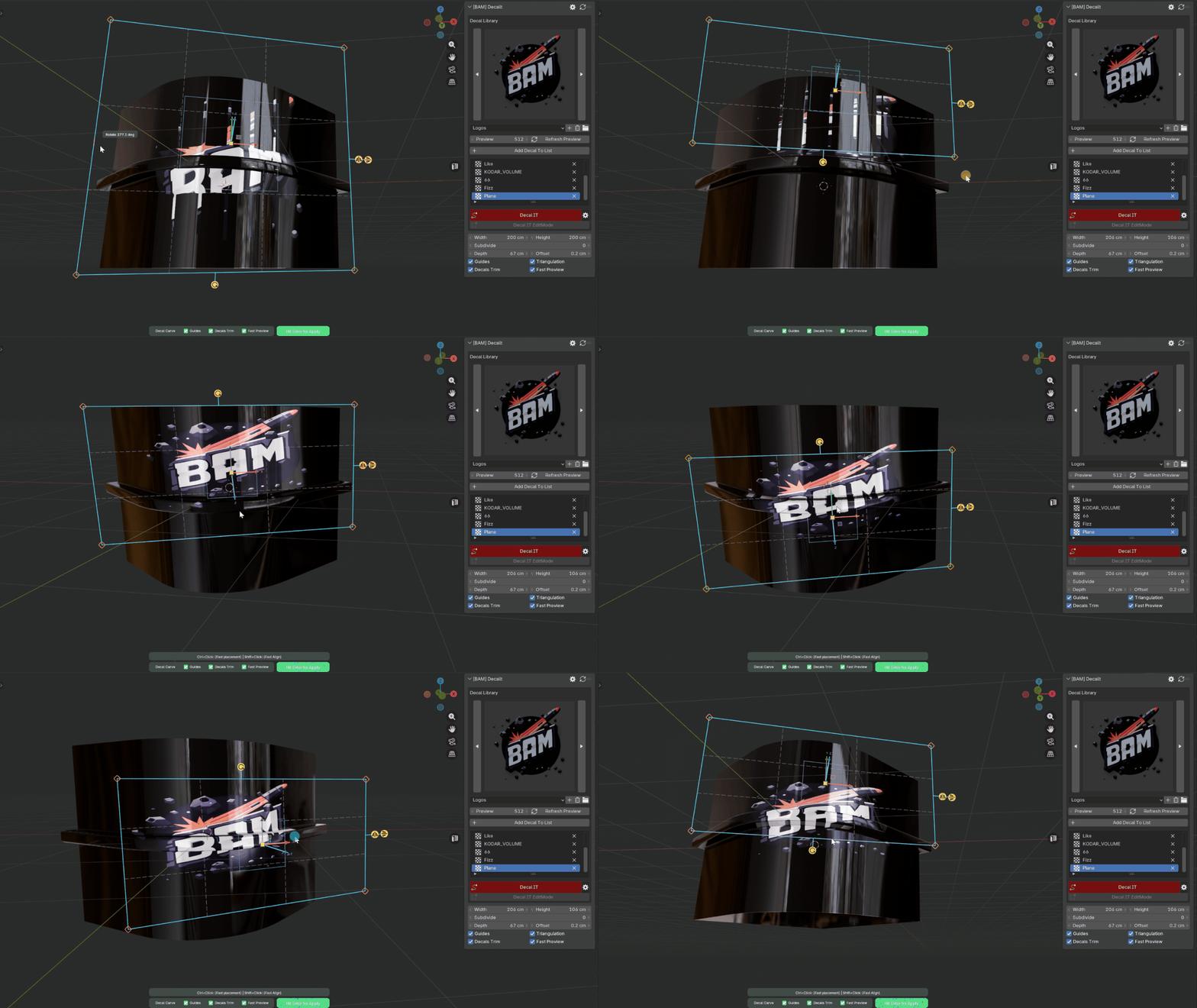 Start Decal IT, hover a surface, and position the decal with a viewport overlay. Adjust scale, depth, offset, subdivision, rotation, and placement without leaving the 3D view.
Target Topology Mode
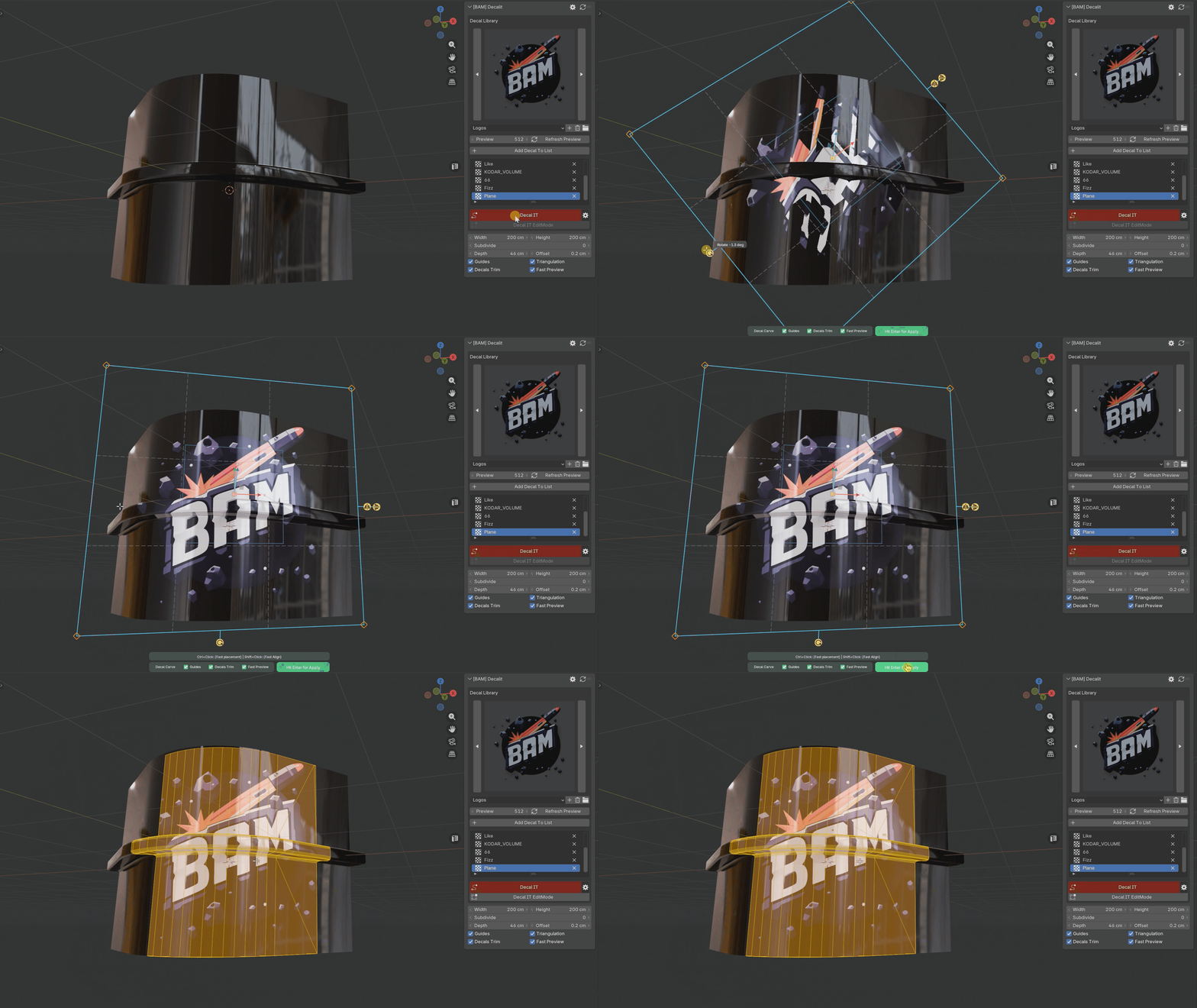 Use the target mesh topology as the decal geometry so the result follows the surface cleanly. This is the main mode for production placement on curved meshes.
Volume Mode (Beta)
Project flat contact topology while preserving raised source volume. Useful when the decal is not only a flat mark, but a small raised mesh detail (stickers with peeling edges, wall paint peeling decals and more).
Simple Mode
Use the decal mesh geometry with simple subdivision and ray projection. This mode is fast, responsive, and useful for quick layout but requires subdivision levels for projection on curved surfaces.
Decal Carve
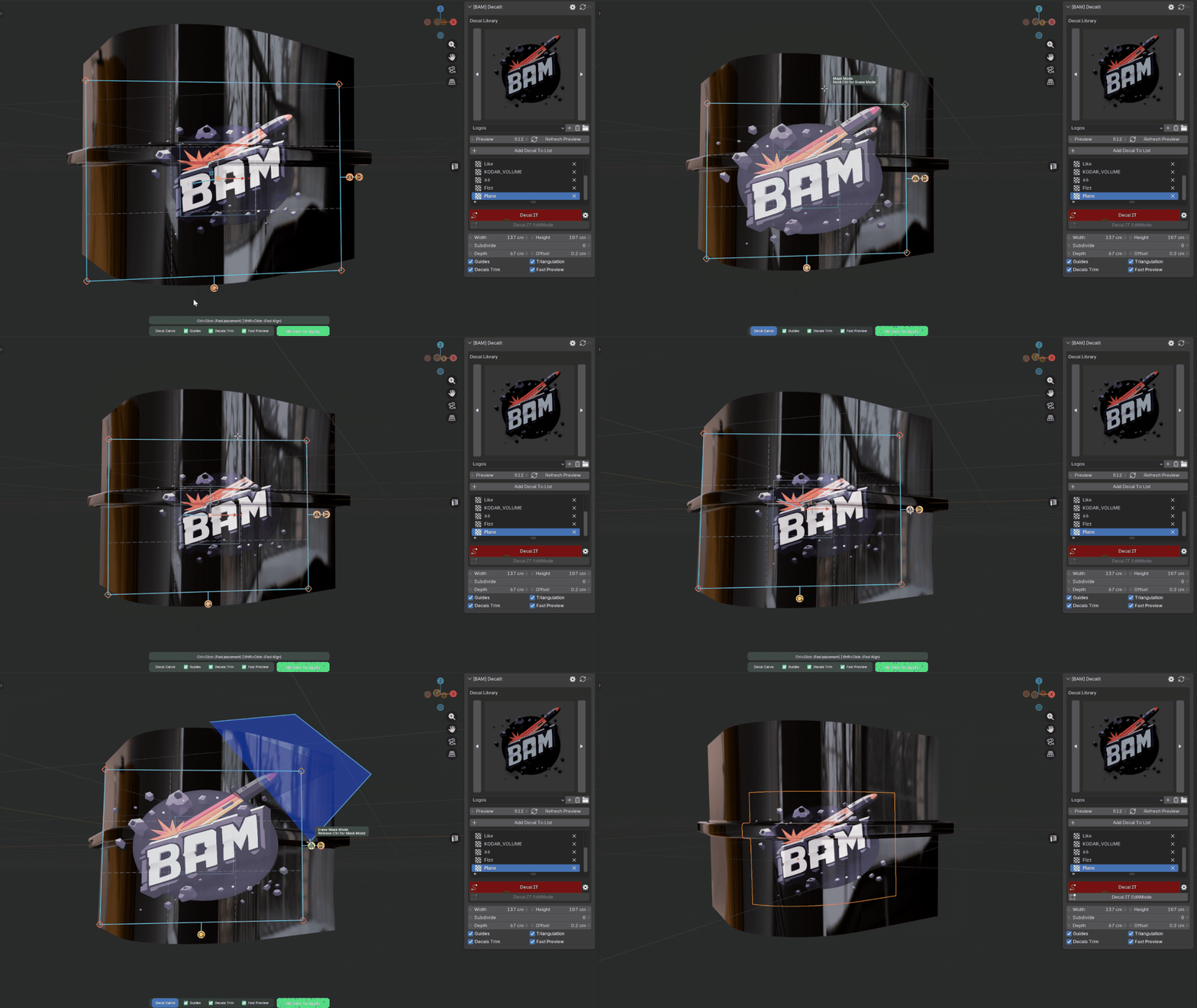 Draw a polygon in the viewport to cut away parts of a projected decal. Hold Ctrl while carving to restore regions.
Decal Library
Build a reusable decal list from selected mesh objects. Save collections, switch presets, browse previews, refresh thumbnails, and keep your most-used details ready inside the View3D sidebar.
Workflow
- Add mesh decals to the Decal Library.
- Pick a projection mode: Decal IT, Decal IT Simple, or Decal IT Volume.
- Place the decal on the target mesh.
- Tune size, depth, offset, subdivision, trim, and triangulation.
- Press Enter to apply, or reopen the result later with Decal IT EditMode.
Location
View3D Sidebar -> [BAM] Decalit
Blender version
Should work as of version 4.5, but was developed and tested on 5.0
What's New
1.0.0 June 8th, 2026
Release:
- Project mesh decals by using convenient UI/UX.
- Place, move, scale, rotate, flip, and align decals in the viewport.
- Control width, height, projection depth, offset, subdivision, trim, and triangulation.
- Switch between Target Topology, Simple, and Volume projection modes.
- Save decal collections and browse them with preview thumbnails.
- Make changes to existing BAM Decals with Decal IT EditMode.
- Cut or restore decal regions with Decal Carve.
Doesn't work as expected. The method to add decals is more convoluted than just importing images as planes and adding a shrinkwrap to it, and its mapping to objects behaves very odd in blender5.1.