 Vectart Animation
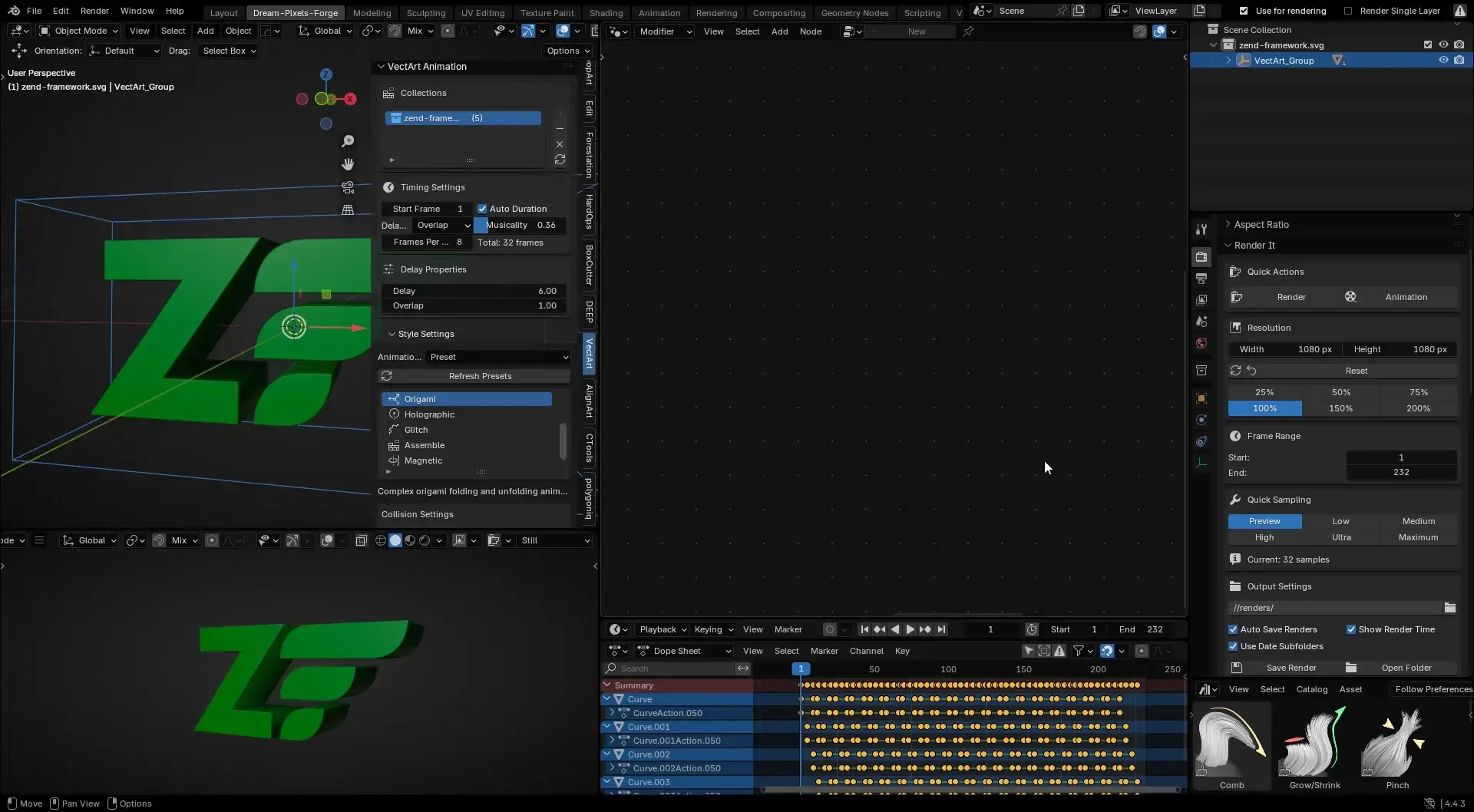
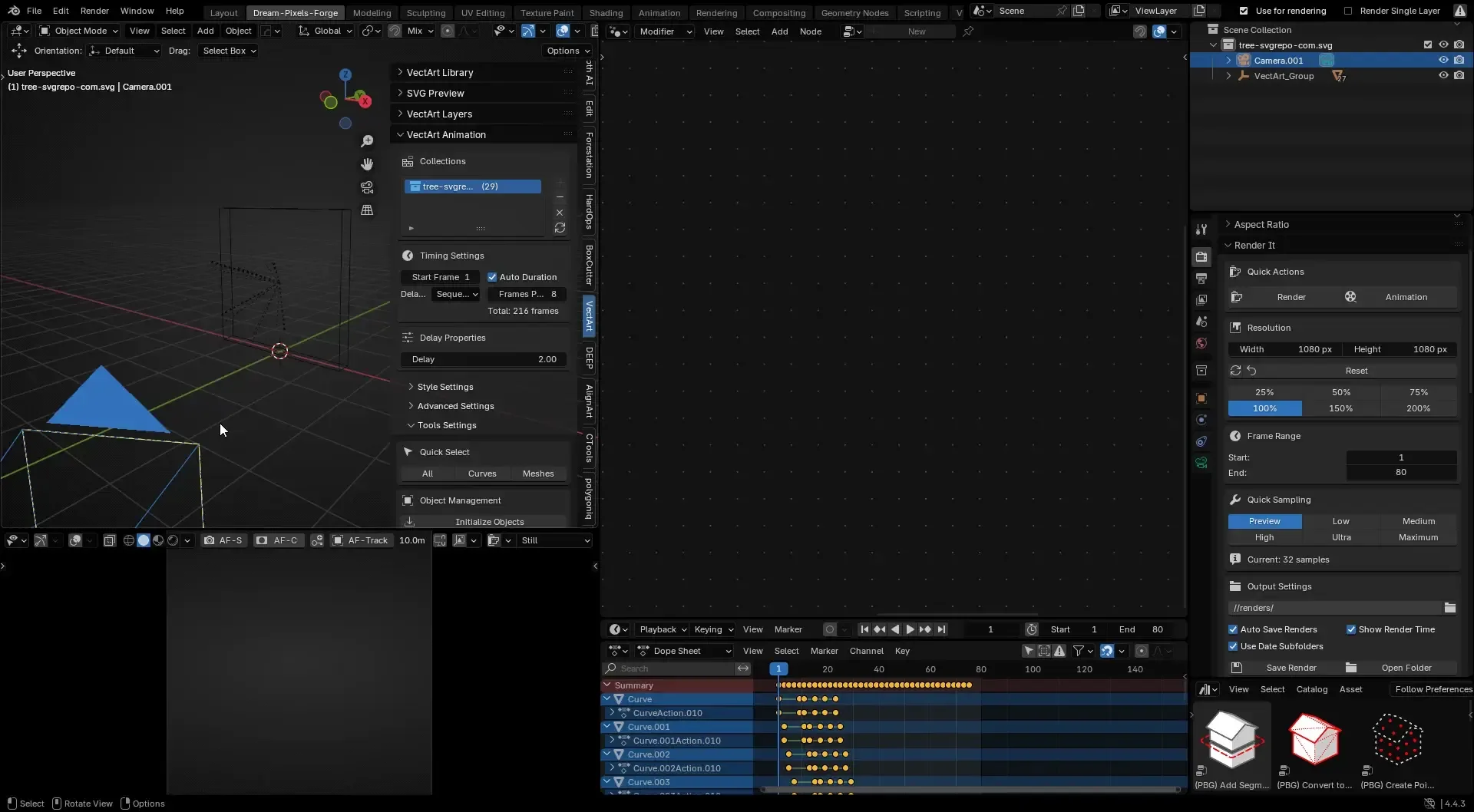
VectArt Animation Add-on
Overview
VectArt Animation is a powerful Blender add-on designed to orchestrate expressive, "orchestral" animations for collections of mesh and curve objects. It provides advanced timing, sequencing, collision avoidance, and preset-driven animation styles, all with a modern, grid-based UI.
Features
- Collection-Based Animation: Animate all objects in a collection with a single click.
- Orchestral Timing: Control sequencing with delay modes, overlap, randomness, and a unique "Musicality" slider.
- Animation Presets: Apply dramatic, cinematic animation styles (e.g., Robotic Unfold, Tech Assembly, Explode, etc.).
- Collision Avoidance: Smart placement to prevent object overlap during animation.
- Grid-Based UI: Clean, organized panels for timing, style, and advanced settings.
- Keyframe Tools: Copy, paste (including reverse), and clear keyframes for batch workflows.
- Customizable Animation Types: Combine scale, rotation, location, and extrude animations with per-type offsets.
- Advanced Easing & Interpolation: Choose from multiple interpolation and easing types for professional results.
- Layered Animation Order: Animate from top-down, bottom-up, or all at once.
- Quick Select & Management: Easily manage and select objects/collections for animation.
Usage
- Add Collections
In the VectArt Animation panel (View3D > Sidebar > VectArt Animation), add your target collections using the Add Collection button. Manage collections with add, remove, clear, and refresh buttons.
- Timing Settings
Set the Start Frame, Auto Duration, Frames Per Object, or Total Duration.
- Choose a Delay Mode:
- None: All objects animate together.
- Sequential: Objects animate one after another.
- Random: Randomized delays.
- Overlap: Objects animate with overlapping timing.
Adjust the Musicality slider for expressive orchestration.
- Animation Style
Choose Default or Preset animation mode. In Default mode, enable/disable and offset Scale, Rotation, Location, and Extrude animations. In Preset mode, pick from a list of dramatic animation styles and preview or apply them to your collection.
- Advanced Settings
Set interpolation and easing types. Choose animation velocity (uniform, accelerate, decelerate). Set animation order (top-down, bottom-up, simultaneous). Enable Use Local Axis for local-space animations.
- Tools
Quick-select all, mesh, or curve objects in a collection. Store original transforms for easy reset. Copy and paste keyframes (including reversed). Clear animation and restore original state.
Animation Presets
- Robotic Unfold: Dramatic scaling, unfolding, and rotation.
- Robotic Transform: Complex, multi-step transformation.
- Tech Assembly: Pieces fly in and assemble with scale and rotation.
- Mech Startup: Mechanical startup with vibration.
- Holographic Appear: Appear from above with scale and fade.
- Glitch Appear: Random jumps and scale flickers.
- Assemble: Dramatic assembly from all directions.
- Magnetic: Snap-in with bounce.
- Explode: Scale up, explode outward, and fade.
Collision Detection
Enable Use Collision Detection to prevent objects from overlapping during animation. Adjust Collision Margin for more or less spacing. Keyframe Tools
- Copy Keyframes: Copy animation from selected active collection.
- Paste Keyframes Reversed: Paste copied animation in reverse order.
- Clear Animation: Remove animation and restore original transforms.
Tips
Use the Musicality slider for more expressive, layered, or staggered animation. Combine multiple animation types (scale, rotate, move, extrude) for richer effects. Use presets for instant cinematic animation, or customize your own with the default mode. Use the Quick Select tools to manage large collections efficiently.
Support
For bug reports, feature requests, or questions, please open an issue on the repository or contact: dream.pixels.forge@gmail.com
License GNU -3.0 or later
What's New
1.1.4 June 19th, 2025
Fix issue with scale offset blocking other properties from working when it's toggled off
Thanks to the developer for this super useful tool! It offers a great selection of Animation Presets that can be applied with one click. I have a small suggestion: please move “Create Animation / Apply Preset / Clear Animation” to the main outer menu instead of hiding them inside Tools Settings. I struggled to find them at first and felt a bit confused.