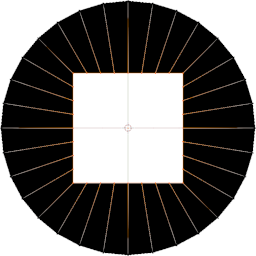
 To Square


You can find the square operator in 3D Viewport ‣ Sidebar ‣ Square tab or
in 3D Viewport Edit Mode ‣ context menu ‣ Square.
Any selection is considered acceptable input for the square tool.
The square operator allows you to choose between three methods:
- Multi: Make a square for each selected loop.
- Around: Make square(s) with the vertices surrounding the selection.
- Mono : Make only one square with all the selected vertices of the objects in edit mode.
Some options are availlable in the Square panel or in the Adjust Last Operation Panel or both:
- You can choose the center of a square from its vertices geometric center, its vertices bounding box center, or the 3D cursor location.
- You can choose the position of a start corner, from which is built a square, among its vertex location, the 3D cursor location, or the projection of its vertex on the average plane of its selected loop.
- 'Offset' property allows to offset the corners of the square on the next vertices. Note that, if a square has only four vertices and its start corner position is set on 'Plane', changing the corner offset has no effect.
- 'Scale': By default the size of the squares depends on their own geometry and you can use 'Scale' to resize the squares around their center.
- 'Spin' property lets you rotate the squares around their normals, 'Diagonal A', 'Diagonal B', around their diagonals, Median A, Median B , around their medians. To figure out what diagonal or median is A or B when you click on an eye button beside it deselect the corners not on the diagonal in question, or a side parallel to the median in regard.
- 'Size': Otherwise you can set a common size for all the squares by checking the 'size' box and then entering the length of the sides of the square in the field nearby.
- 'Zigzag' property to set the vertices of the squares so that the edges between them zigzag, which can avoid edges overlapping when the squares are made with open loops.
- 'Reverse' property offers the possibility to invert the order of the vertices of the squares.
- You can also lock editing of the x, y, z local coordinates and adjust the force of the operator.
When there are several squares you can adjust the squares all at once or one by one:
- 'Select Square N°' enables you to choose the square you want to edit.
- There is a button to prevent the square selected with 'Select Square N°' to be affected by the changes made with 'Edit All At Once' buttons. As soon as a square is locked so, some buttons appear alongside the 'Edit All At Once' label to ignore, delete or invert all locks.
- 'Show Selected Square' is on to select only the current N° for visibility, when off the original selection is restored.
- There is arrows, if there is intersecting loops, to change individually the order the loops are squared one after the other.
- 'Square Before After' can also clear all custom order changes and invert the order of all the intersecting loops.
- 'Outcast' is for squaring the vertices not found in a loop. If 'Around' property is checked or if there is less than four of them, the vertices not found in a loop are squared with Around method, otherwise it makes one square with all of them.
- 'No Mix' forbids to square open loops that intersect with closed loops.
With Around method if the selected vertices are boundary they may be included in the square.
When loops have common vertices they are adapted to not square the enclosed vertices, witch generally results by making only one square, the exceptions are when the selected loop(s) cleave(s) the mesh.
By default only the resulting square(s) are selected. The original selection can be restored by unchecking 'Around Squares Highlight'.
If there is less than 4 selected vertices while the method in use is the Multi or the Mono method the operator will use the Around method as long as there is not more vertices selected.
With Mono method 'Position' property sort the vertices of the square by their position rather than their links.
In the panel, if Default property is checked, the properties defined in the preference, or all the properties if Restrict property is unchecked, are reset to their default value as soon as the Square operator is executed, that default value you can also change in the add-on preferences.
There is also a presets menu in the panel to store and reload the values of the properties of the panel except itself, Default, and Restrict properties.
In the add-on preferences you can also remove the Square operator of the context menu and rename the Square panel of the Sidebar.
What's New
2.2.2 April 20th, 2026
Squares alignments improvements.
Spare some loopings on vertices links.
Fixes:
- Bad loops detection in cylinders without generatrix subdivision.
- Revert "Remove useless code in 'loops_relation' function" in former version as it impacts the offsetting directions for the squares of UVSpheres.