Extensions
  • Home
  • Add-ons
  • Themes
  • Approval Queue
  • About
  • Upload Extension
  • Sign in
  • BLENDER.ORG

    • Download

      Get the latest Blender, older versions, or experimental builds.

    • What's New

      Stay up-to-date with the new features in the latest Blender releases.

    DEVELOPMENT

    • Roadmap

      See which projects are currently being worked on and what's next.

    • Documentation

      Guidelines, release notes and development docs.

    LEARNING & RESOURCES

    • Blender Studio

      Access production assets and knowledge from the open movies.

    • Manual

      Documentation on the usage and features in Blender.

    • Benchmark

      A platform to collect and share results of the Blender Benchmark.

    • Blender Conference

      The yearly event that brings the community together.

    DONATE

    • Development Fund

      Support core development with a monthly contribution.

    • One-time Donations

      Perform a single donation with more payment options available.

All Add-ons

Add-on Scene Duration Display
Scene Duration Display

Displays and syncs timeline duration. Set preview range with I/O.
Add-on by K_Naoki
About Reviews Version History

Overview

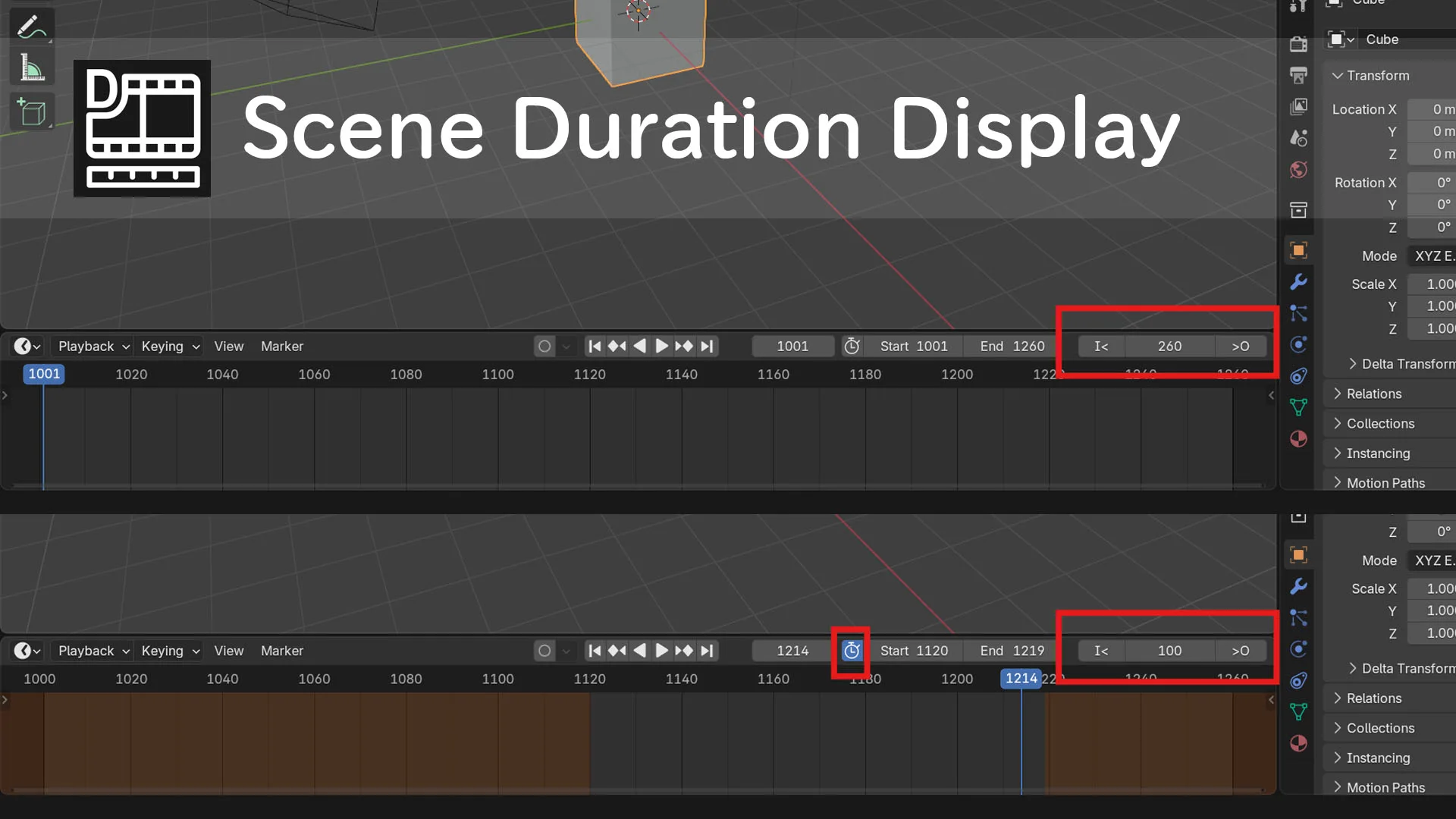
This add-on adds an interactive "Duration" field to the header of the Timeline. It allows you to intuitively view and edit the length of your scene's frame range or preview range.

Main Features

  • Interactive Duration Display:
    • Shows the length of the current frame range in frames.
    • Automatically switches between displaying the duration of the main timeline range and the preview range when "Use Preview Range" is toggled.
  • Bidirectional Sync:
    • The Duration field updates in real-time when you change the Start/End frames.
    • Conversely, editing the Duration value automatically updates the corresponding End Frame.
  • Intuitive I/O Buttons:
    • I< Button: Sets the current playhead frame as the In-point (Preview Start) of the preview range. This also automatically enables "Use Preview Range".
    • >O Button: Sets the current playhead frame as the Out-point (Preview End) of the preview range.

How to Use

  1. Locating the UI: Find the new I< [Duration] >O controls in the header of the Timeline.

  2. Setting the Preview Range (I/O Method):

    1. Move the playhead to your desired start frame.
    2. Click the I< button. This sets the Preview Start.
    3. Move the playhead to your desired end frame.
    4. Click the >O button. This sets the Preview End, and the duration between them will be calculated and displayed instantly.
  3. Editing Duration Directly:

    • Click the numerical field between the I< and >O buttons.
    • Type a new duration and press Enter.
    • The End Frame (or Preview End Frame, depending on the current mode) will be adjusted accordingly.

If it does not work on first installation, please restart Blender.


What's New

No changelog for this release.


Permissions

This extension does not require special permissions.

Developer
K_Naoki
Rating
Leave a review
Version
1.1.1
Updated
11 mo
Published
June 28th, 2025
Downloads
2100
Size
2.3 KB
Compatibility
Blender 4.2 LTS and newer
Report Issues
github.com/kurono73/Scene_Duration_Display
License
GNU General Public License v3.0 or later
Animation
...or download and Install from Disk
  • 2.3 KB

Reviews

See all
Be the first to review.
  • About
  • Privacy Policy
  • Terms of Service
About
  • Blender Foundation
  • Blender Institute
  • Blender Studio
  • License
  • Logo & Trademark
  • Credits
  • Privacy Policy
  • Code of Conduct
Organization
  • People
  • Jobs
Blender Network
Download
  • Latest Blender
  • Blender LTS
  • Previous Versions
  • Experimental Builds
  • Source Code
  • Requirements
  • Benchmark
  • Flamenco
Extensions
  • Add-ons
  • Themes
Developers
  • Get Started
  • Roadmap
  • Projects
  • Docs
  • Blog
  • Forum
  • YouTube
  • Python API
Blender Studio
  • Films
  • Training
  • Tools & Pipeline
Support
  • Manual
  • Community
  • FAQ
Get Involved
  • Documentation
  • Education
News
  • Press Releases
  • User Stories
Blender Conference
Follow Blender
Support Blender
  • Donate
  • One-time Donation
Artistic freedom starts with Blender The Free and Open Source 3D Creation Suite