 Quick Switch
Documentation
Overview
The addon targets users with limited screen real estate, like laptop or single-monitor users. It reduces UI clutter and allows for quick one-click solution to switch between editor areas, enhancing productivity while keeping a clean workspace.
Key Features
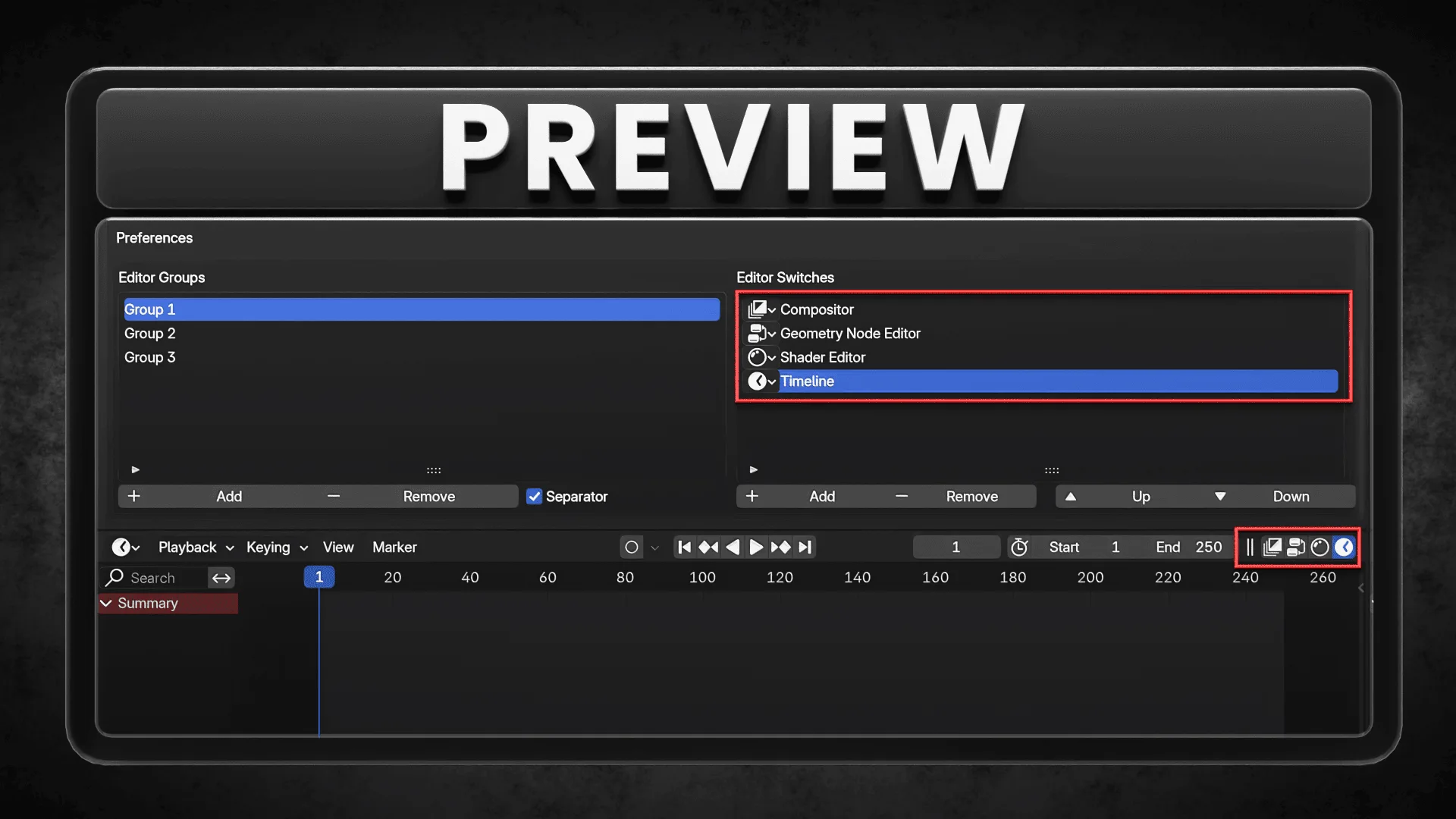
Header Integration: Quick switch buttons are automatically added to right most end of the editor headers for seamless navigation.
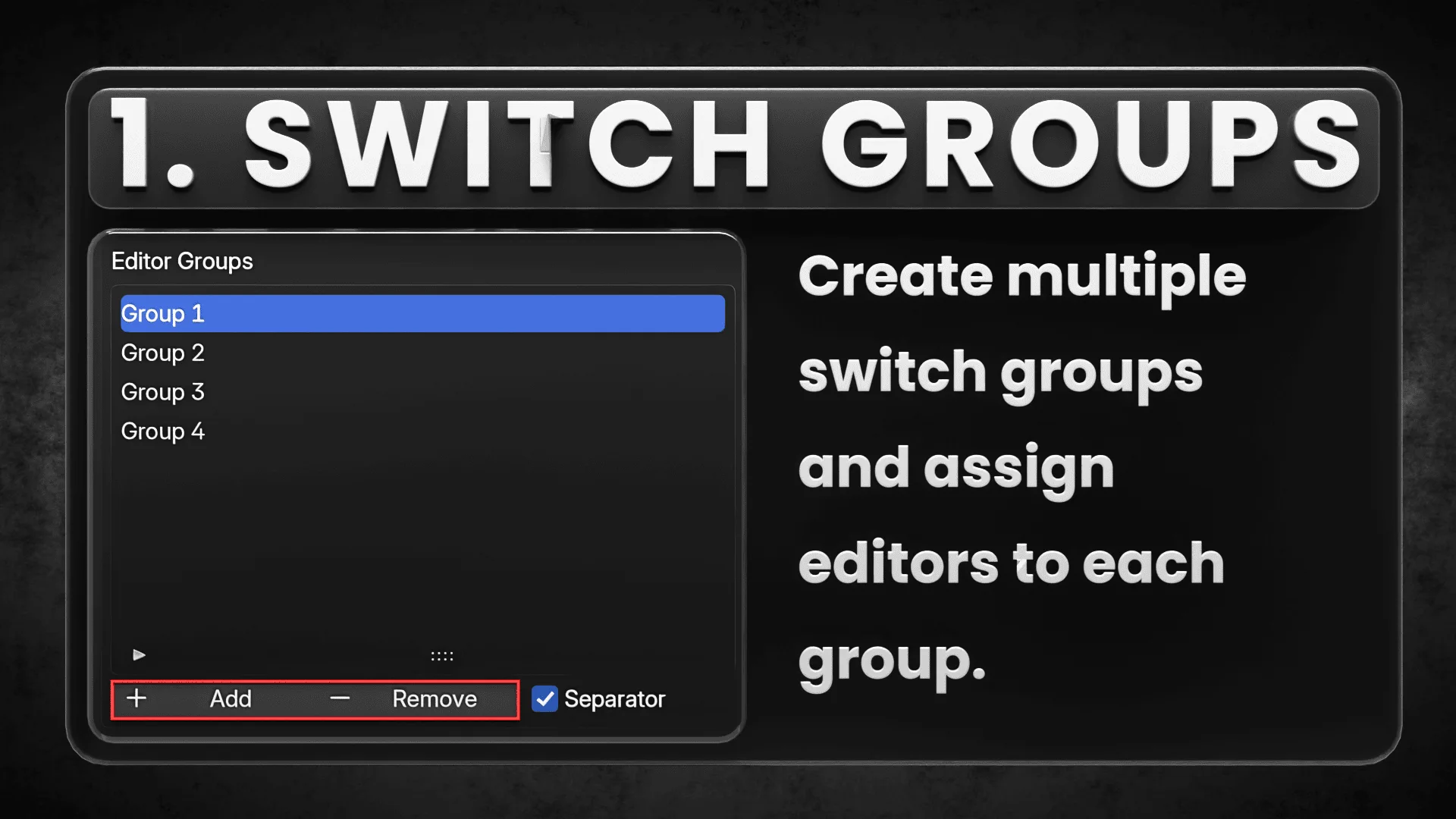
Grouped Editor Switching (New!): Users can define groups of editors and switch between them effortlessly.
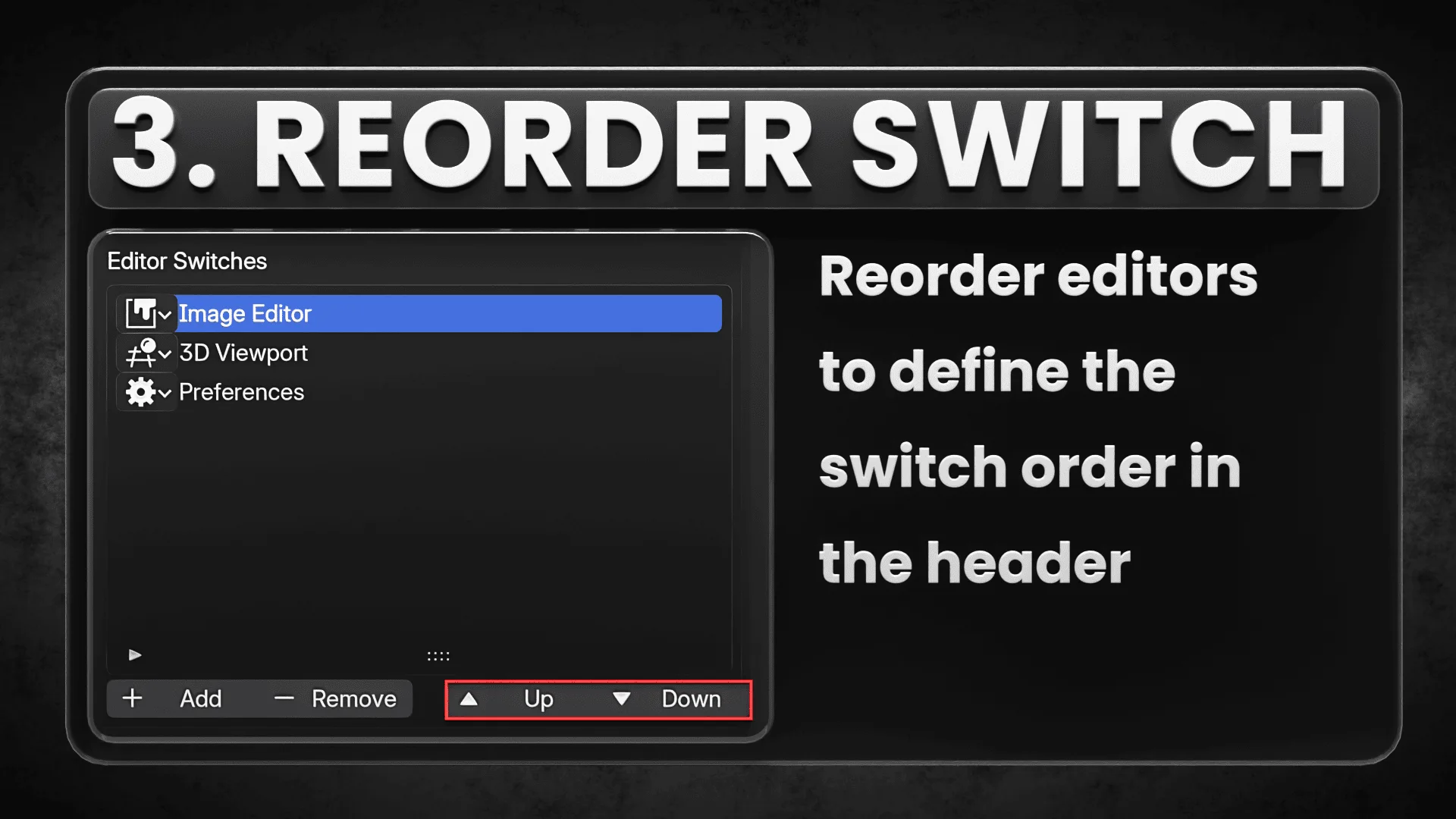
Reorder Editors: Move editors up or down within a group to customize the switch sequence.
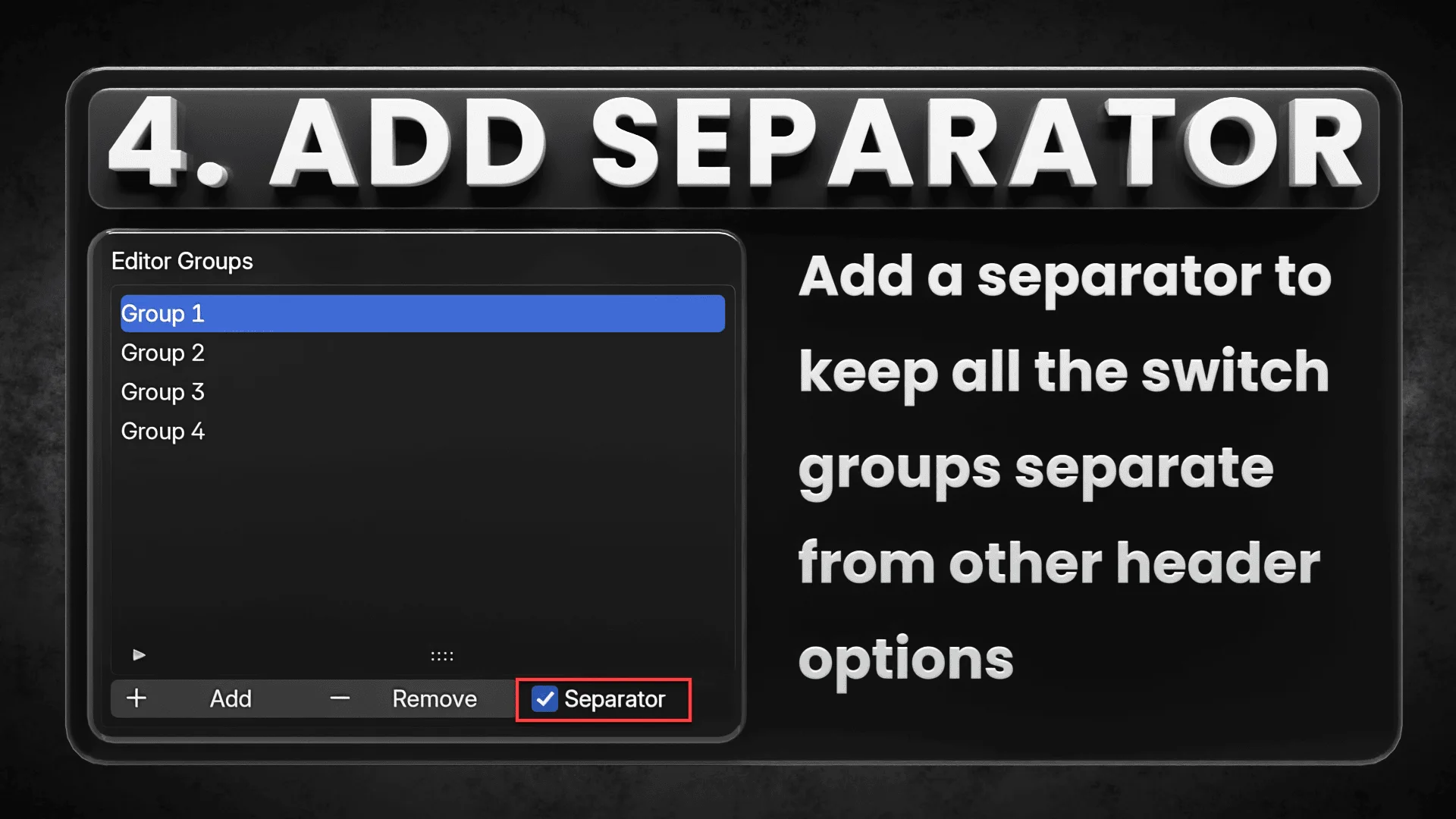
Separator Toggle: Option to enable or disable a visual separator between editor switches and other header operators for better UI clarity.
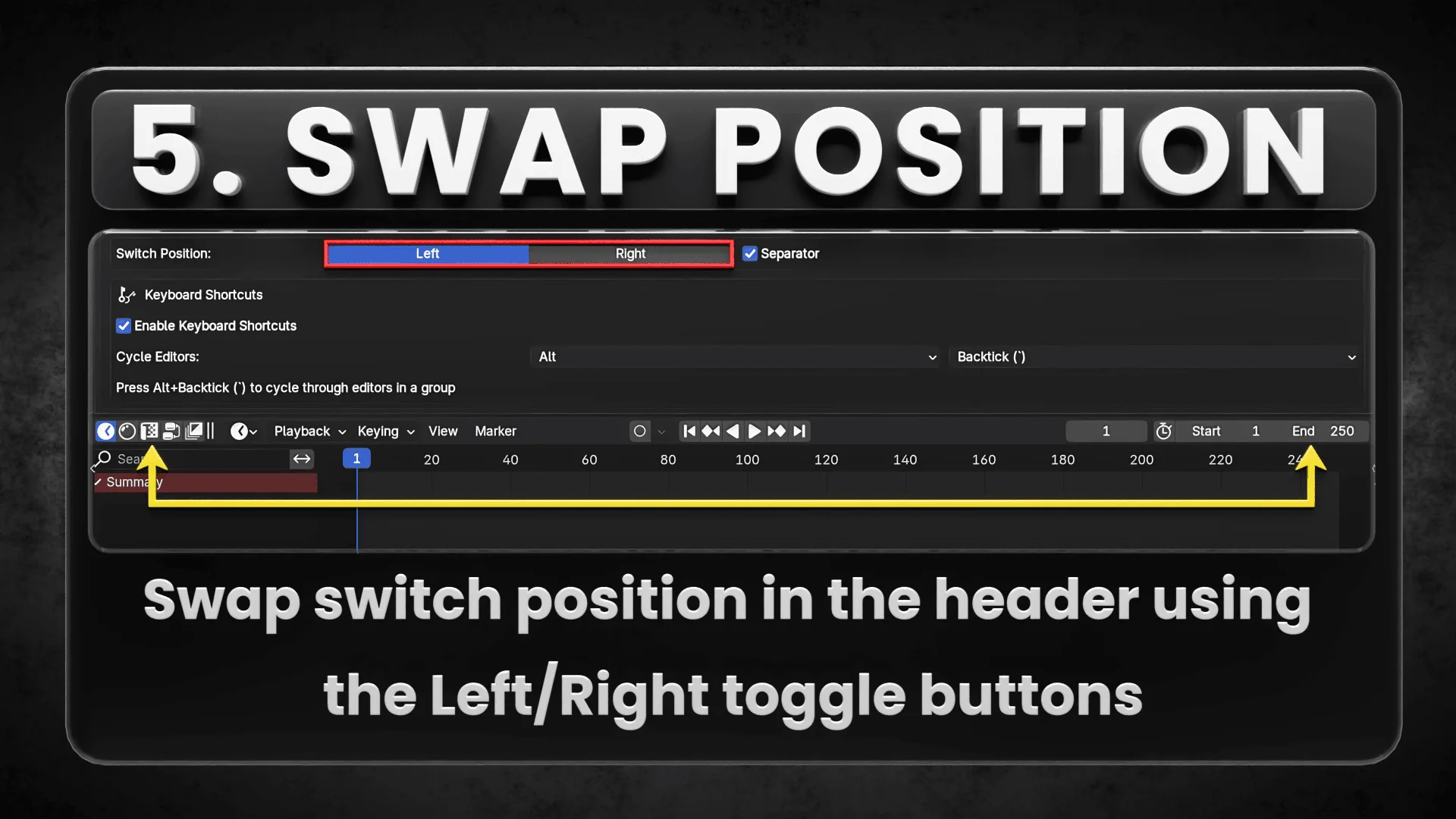
Position Toggle: Option to toggle position of the switches between Left and right side of header.
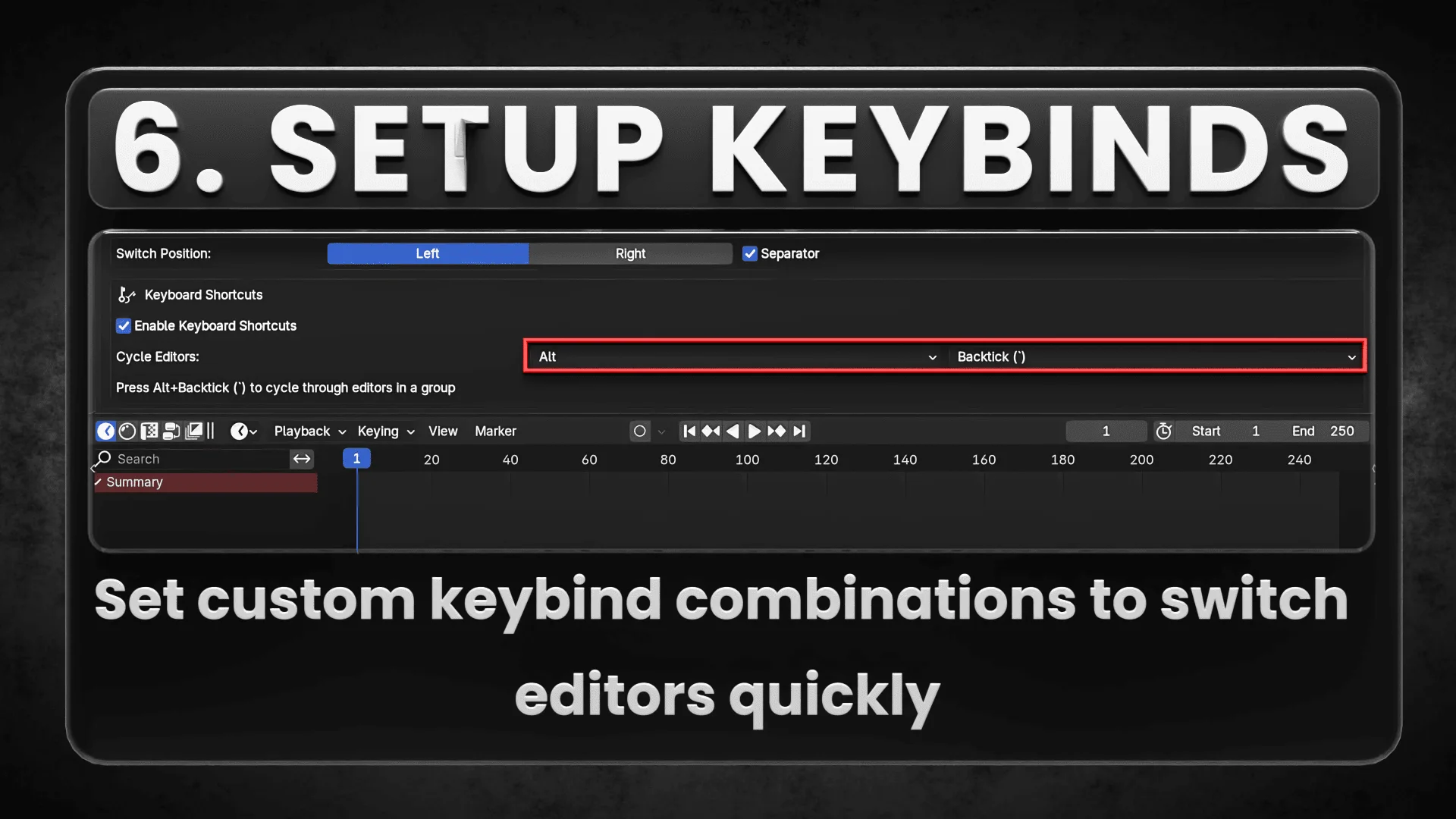
Custom Key binding: Set custom key binding combinations to switch editors quickly (Similar to browser tabs) without interfering with Blender's In-built key binds .
Setup and Configuration
Accessing Preferences
- Install the addon through Blender Preferences > Extensions
- Access the addon preferences through Edit > Preferences > Add-ons > QuickSwitch
Creating Editor Groups
- In the preferences panel, locate the "Editor Groups" section
- Click "Add" to create a new group
- Rename the group to something meaningful (e.g., "Modeling", "Texturing", "Animation")
Adding Editors to Groups
- Select a group from the "Editor Groups" list
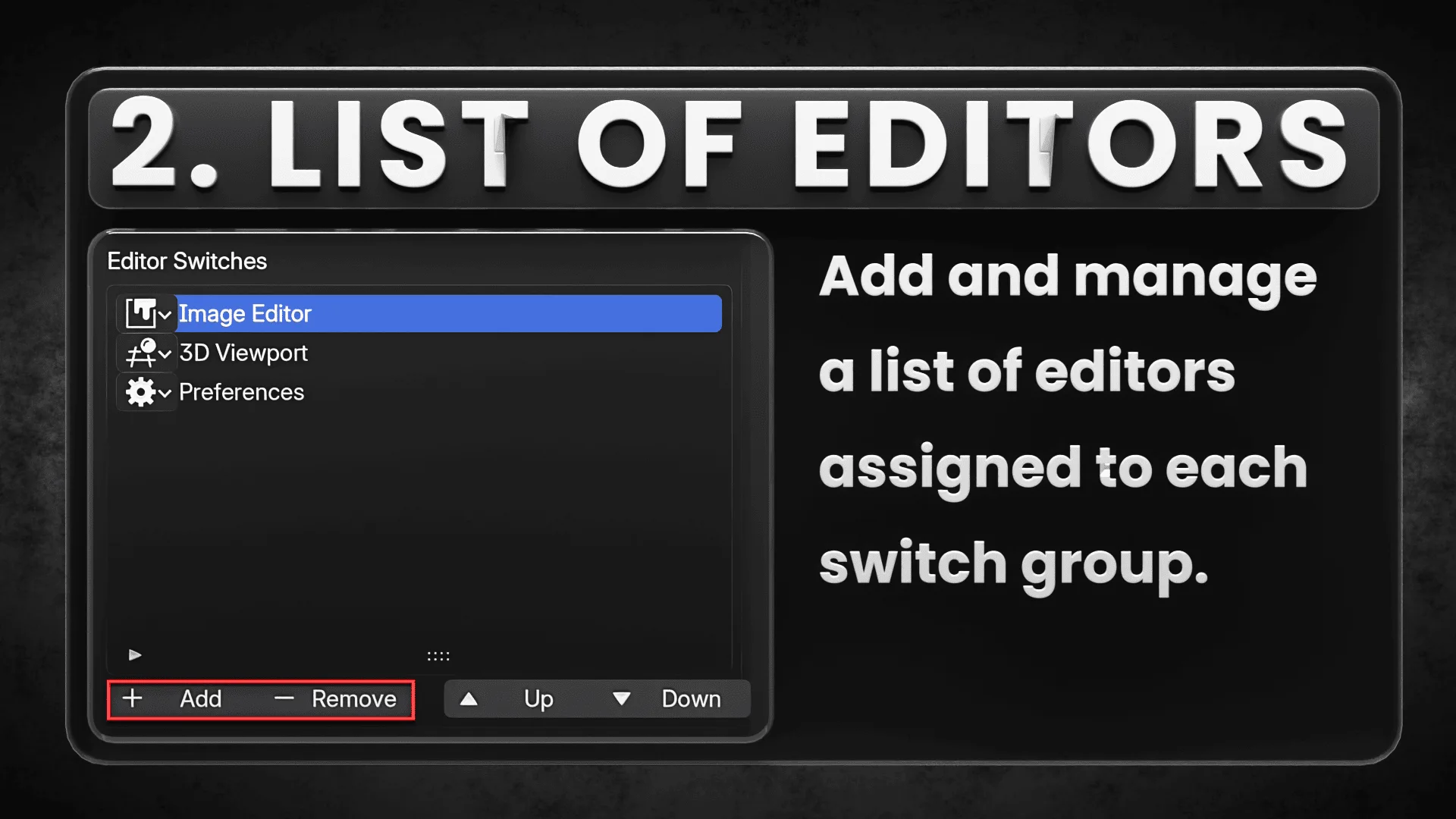
- In the "Editor Switches" section, click "Add" to add a new editor
- Select the desired editor type from the dropdown menu
- Add multiple editors to create a complete workflow group
- Use the "Up" and "Down" buttons to reorder editors in the group
UI Appearance Settings
- In the "Position and Separator" box:
- Choose "Left" or "Right" for the switch position in editor headers
- Toggle the separator visibility on/off
Keyboard Shortcuts
- In the "Keyboard Shortcuts" box:
- Enable keyboard shortcuts
- Select your preferred modifier key (Alt, Ctrl, Shift, or combinations)
- Select your preferred key to combine with the modifier
- The current shortcut will be displayed below the selection
Using the Addon
Switching Editors with UI Buttons
- Look for the editor switch buttons in the header of any Blender editor
- When in an editor that belongs to a group, all editors from that group will be displayed
- Click on any icon to switch to that editor type
- The current editor is shown as depressed (highlighted)
Using Keyboard Shortcuts
- Place your cursor over an editor area
- Press your configured shortcut (e.g., Alt + Backtick) to cycle to the next editor in the group
- Continue pressing to cycle through all editors in the group
Supported Editor Areas
All Editor areas are now supported from version: 2.1.0
What's New
2.2.0 December 25th, 2025
Added Export and Import buttons (Backup and restore configurations into an external json file)
Added visibility toggle for editor groups
(Hide groups from headers while keeping shortcuts active)Added persistent background saving
(Settings are now preserved when restarting Blender or re-enabling the addon)Improved editor selection
(Switches now filter out editors already assigned to other buttons)
Really good and intuitive. Way faster than switching from one workspace to another.
It would be perfect if you could also switch from one sub-editor to another. I think it's called "Editor Type" or "Editor Mode" in Python.
When I need it, I personally take too much time switching to the World material and back again to the material of the object. I also switch the Outliner from "View Layer" to "Blender File" from time to time.
Here’s the list of all sub-editors I found:
- Shader editor
- Object
- World
- Line style
- Image editor
- View
- Paint
- Mask
- Geometry node editor
- Modifier
- Tool
- Texture node editor
- World
- Brush
- Line Style
- Video Sequencer
- Sequencer
- Preview
- Sequencer & Preview
- Movie Clip Editor
- Tracking
- Mask
- Dope Sheet
- Dope Sheet
- Action Editor
- Shape Key Editor
- Greyse Pencil
- Mask
- Cached File
- Outliner
- Scenes
- View layer
- Video Sequencer
- Blender file
- Data API
- Library Overrides
- Unused Data
Thank you very much for your work!
Nice!
Despite the version limit, works fine in Blender 5.1